Before creating your notice, you need to have a valid source declared in AppConsent. This source must have the Application type and an Application name.
See section Create a source in order to learn how to create a new source.
In the left menu, click on Notices and then on CREATE NOTICE.
Settings
Sources: Select the source you want to attach the notice to. A notice is always linked to one source and for your App, this source needs to have a Mobile App type and a Name of application.
Notes: Add the comments you want. It’s a reminder for your own usage and it will not be displayed anywhere in the notice.
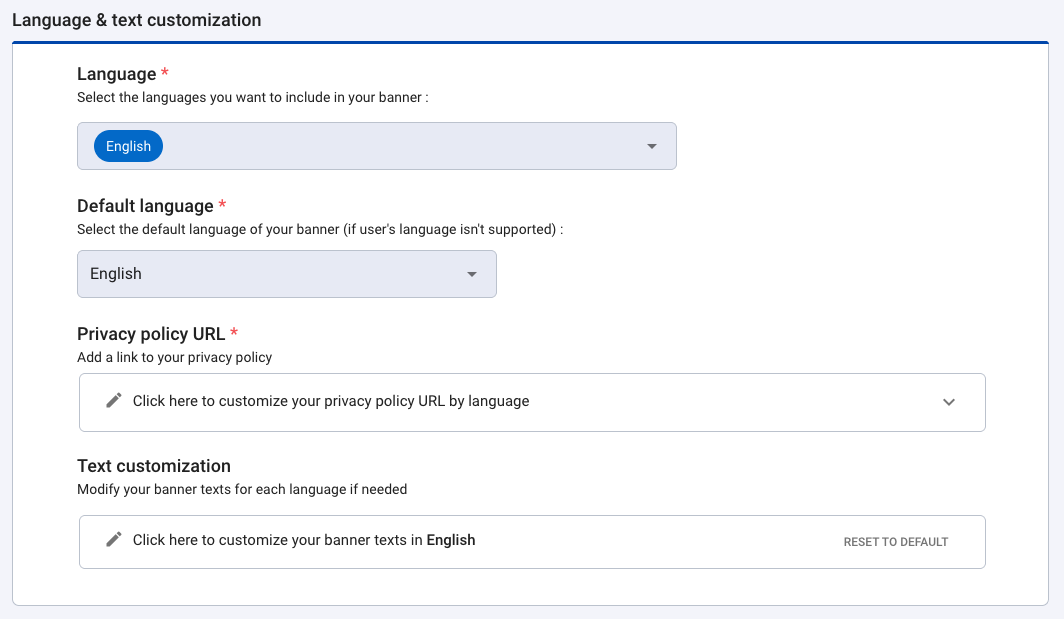
Language & text customization
Languages
Select the language you want to be included in your notice. Languages are available:
English
French
Spanish
Italian
German
Dutch
Portuguese
Polish
Bulgarian
Czech
and 36 other languages available
Default language
This language will be used if the browser language is not configured in one of the languages included in the notice.
By default, a new notice is configured in English only. But you can add other languages and translations.
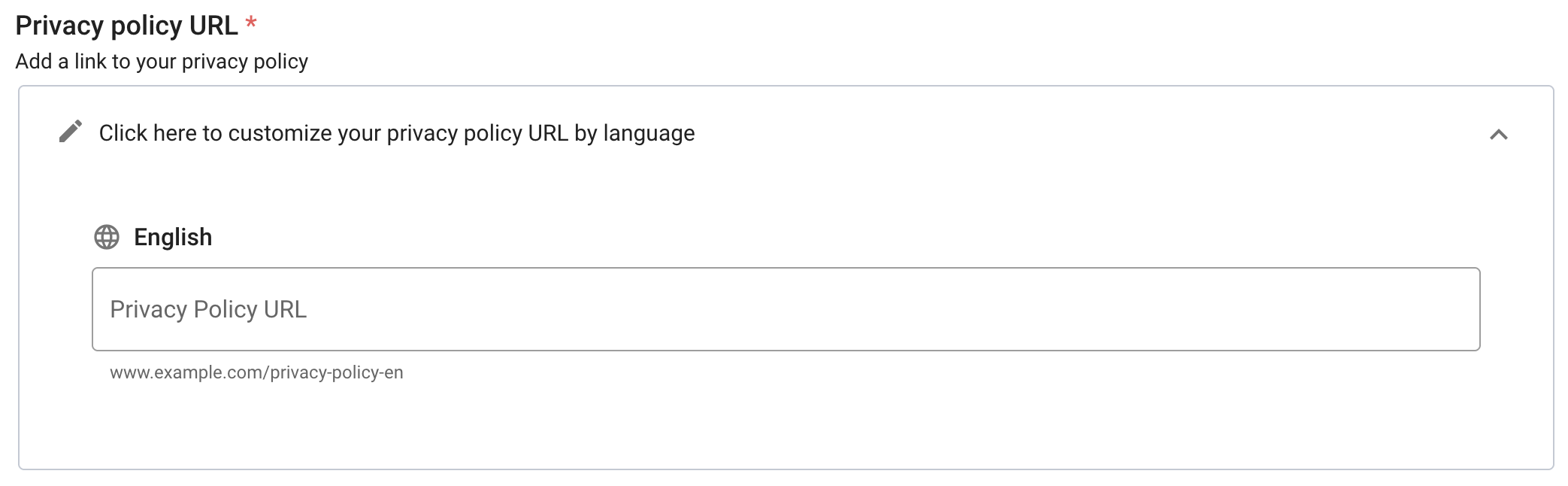
Privacy policy URL
Add the link to your privacy policy for each of the languages selected above. This link will be automatically added to the "See more paragraph" banner field in the text customization section once the notice has been created.
Text customization
In each language tab, you will find all text of your notice. You can modify them. But you can also reset the default texts by clicking on Reset to default.
IMPORTANT
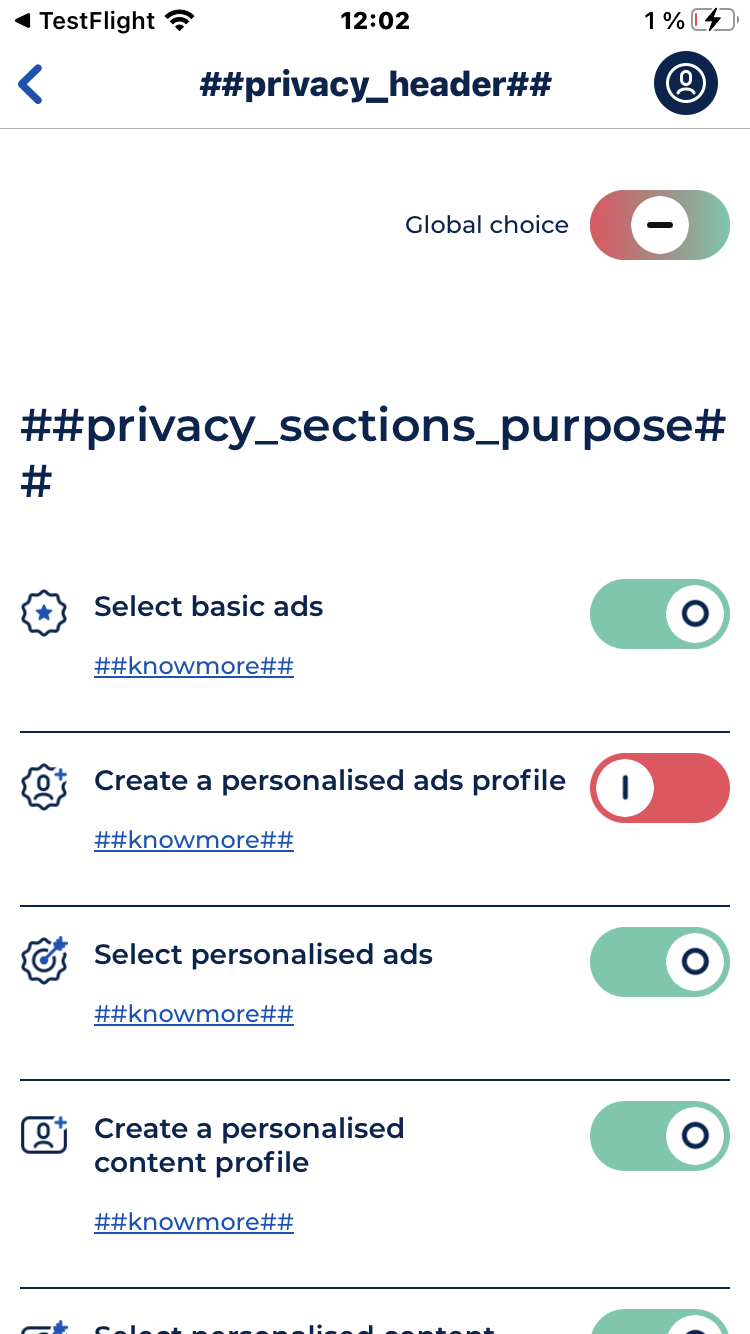
Please note that the default text of the banner banner_moreDetails_paragraphs field does not mention your link to your privacy policy page.
If the <privacy_policy_url> tag is not present in the "See more paragraph" banner field, be sure to add your own link by completing the <a\> tag.
Add clickable link in your texts for Android and iOS
If you need to add clickable links in your text, simply place a URL in your text using <a href="insert your link here">privacy policy</a> tag to have clickable text that will redirect the user to a URL.
It is possible to create links in text to redirect users to other parts of the notice. For this, two tags are available:
<goto_vendors>: Allows to create a redirection link to the list of all partners (vendors) that are present in the notice.
Note: The <goto> tag is deprecated, use <goto_vendors> instead
<goto_settings>: Allows to create a redirection link to consent settings page
The titles of the IAB purposes and their definitions can't be changed. It's due to the IAB TCF compatibility with their Term & Privacy policies.
Introduction page
Main page
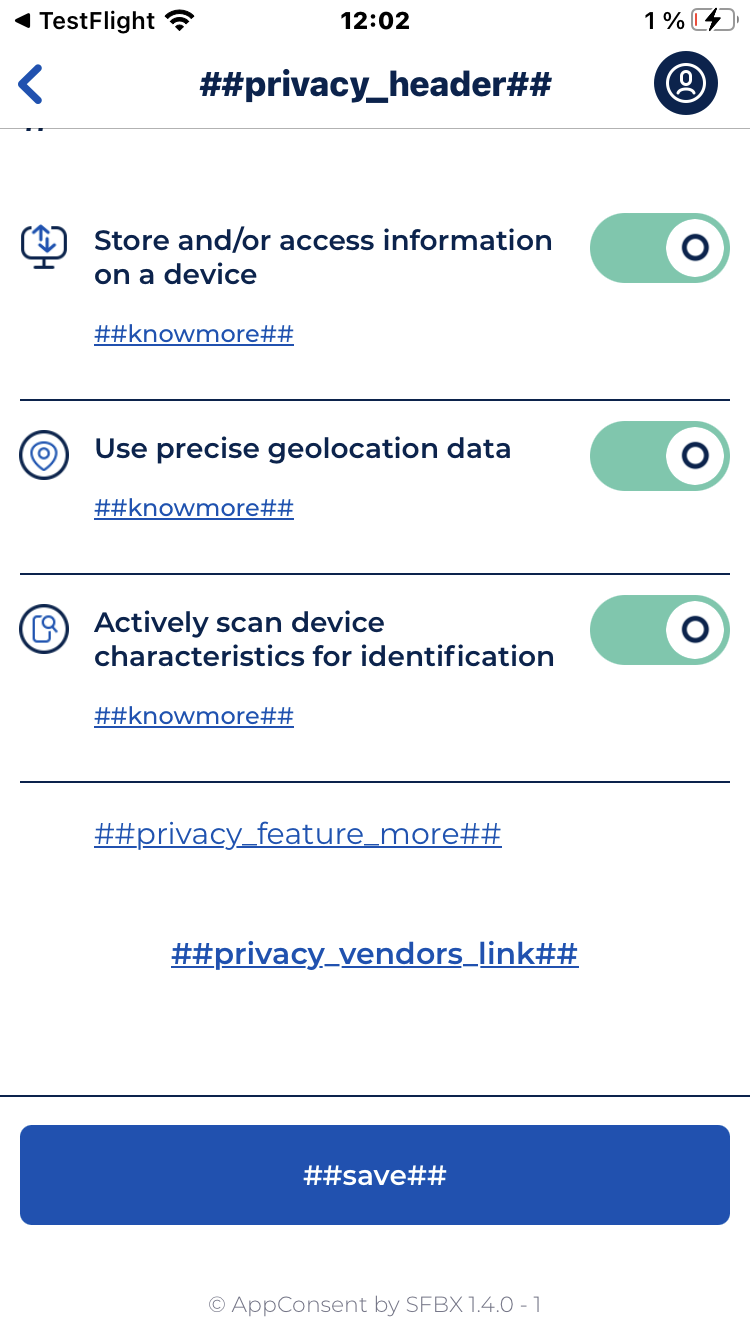
Main page
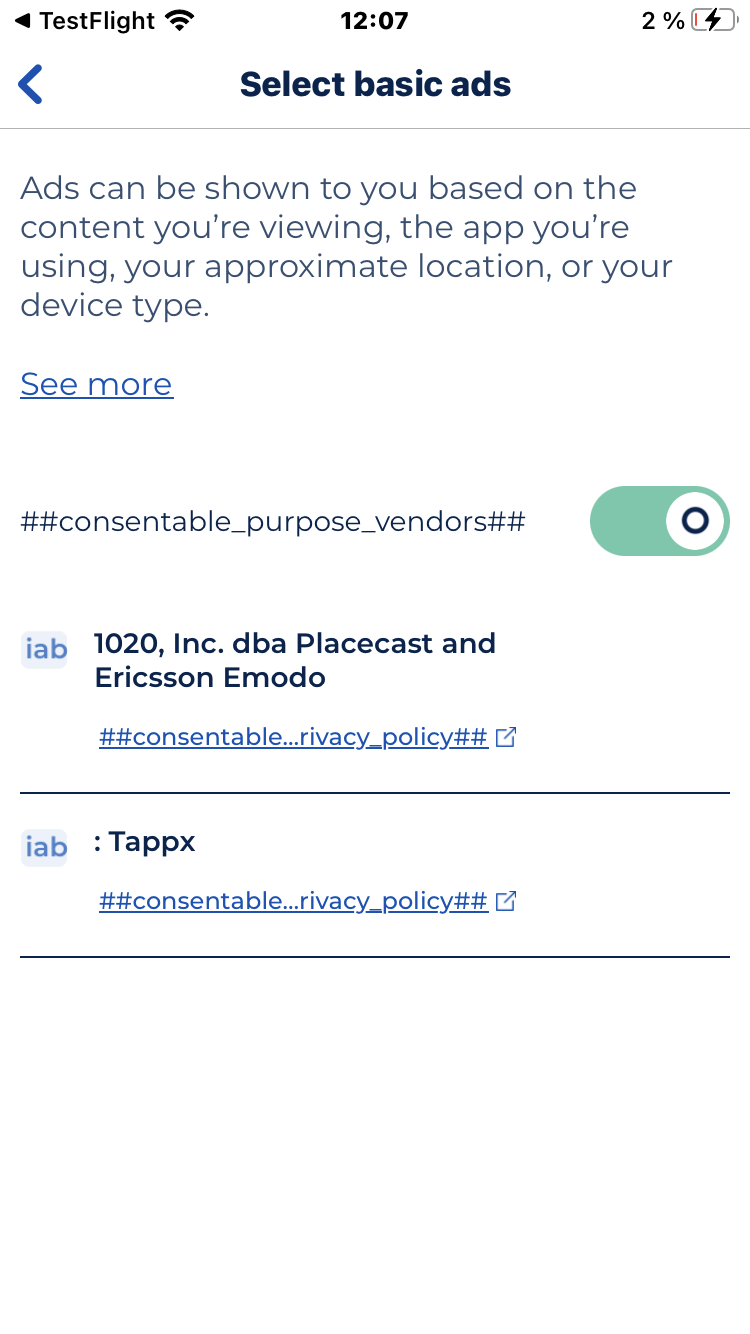
Purpose page
Mandatories purpose page
Mandatories features page
Refine by partners page
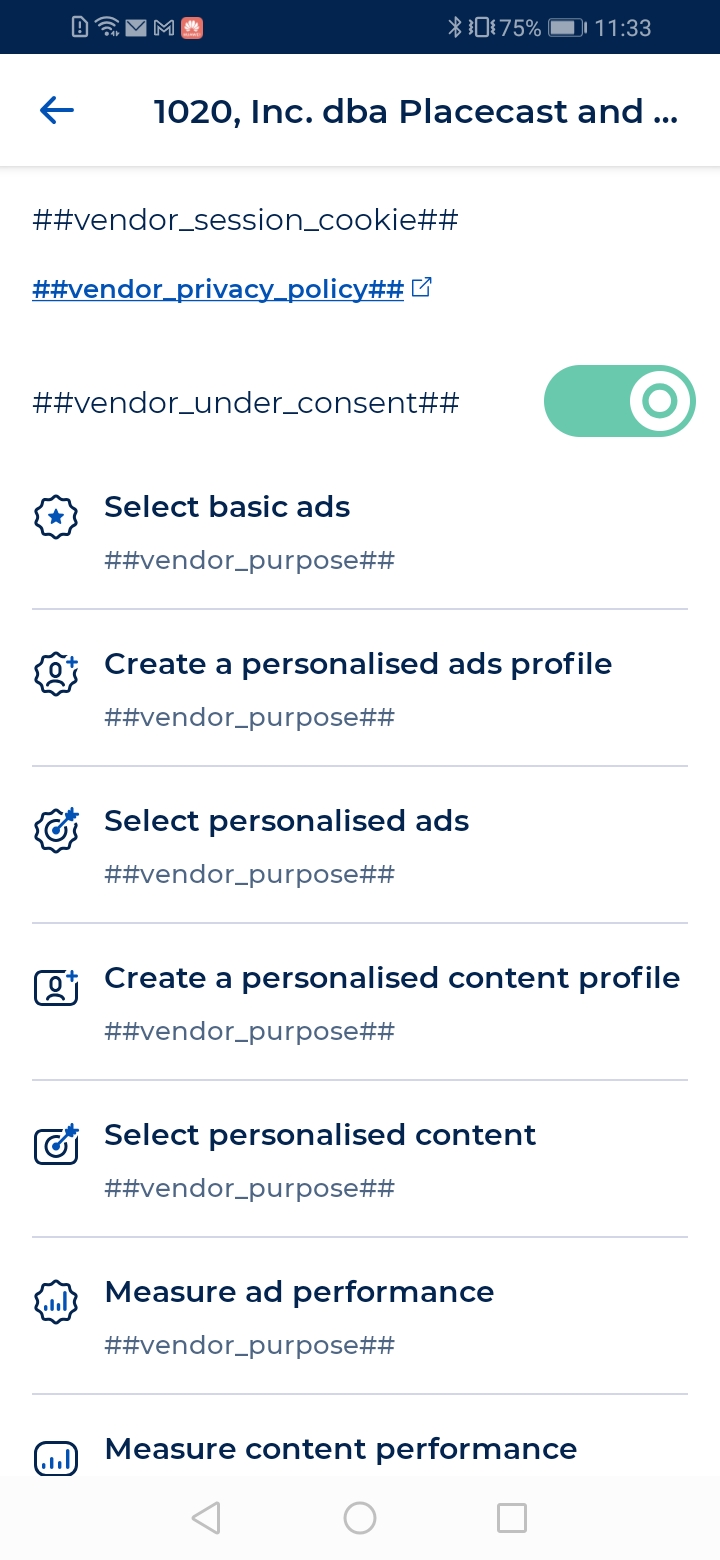
Vendor page
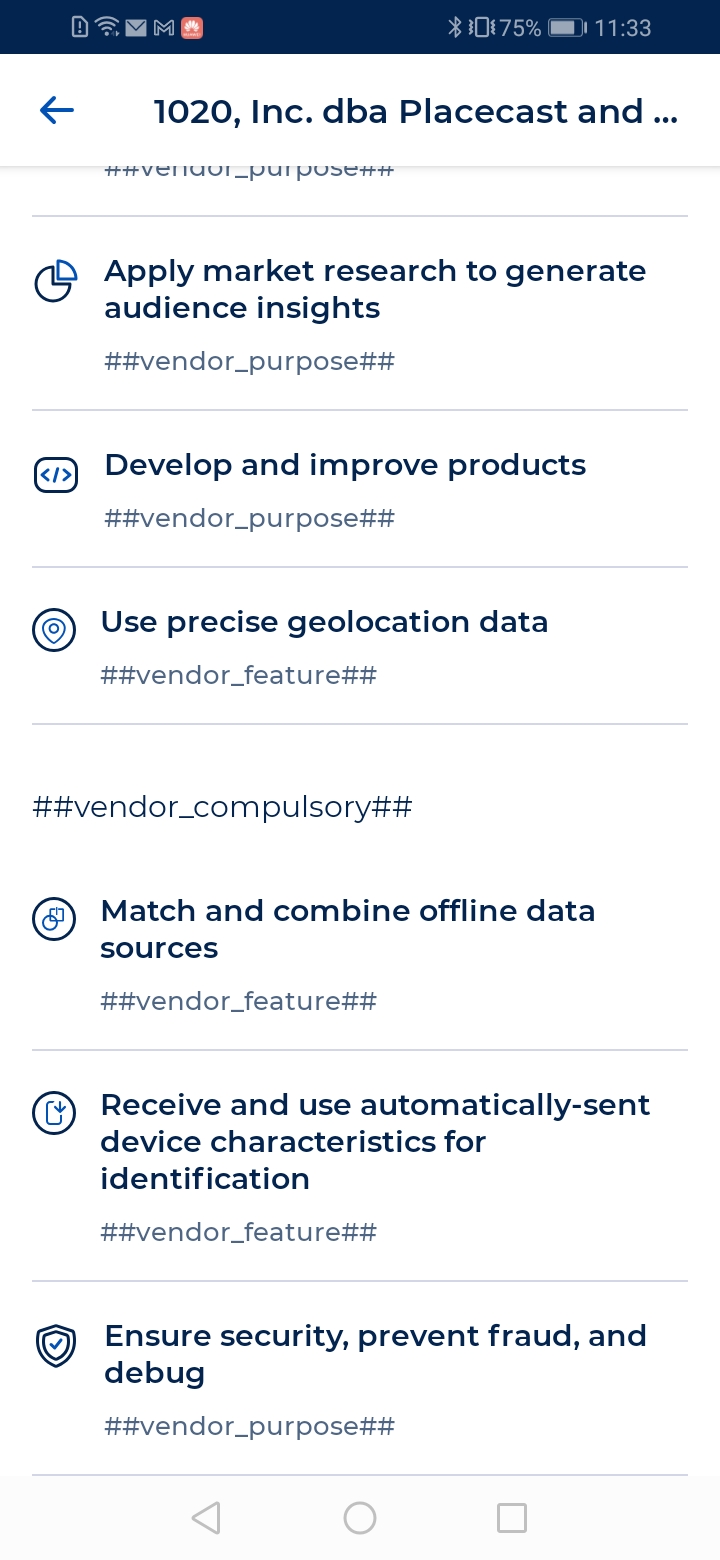
Vendor page
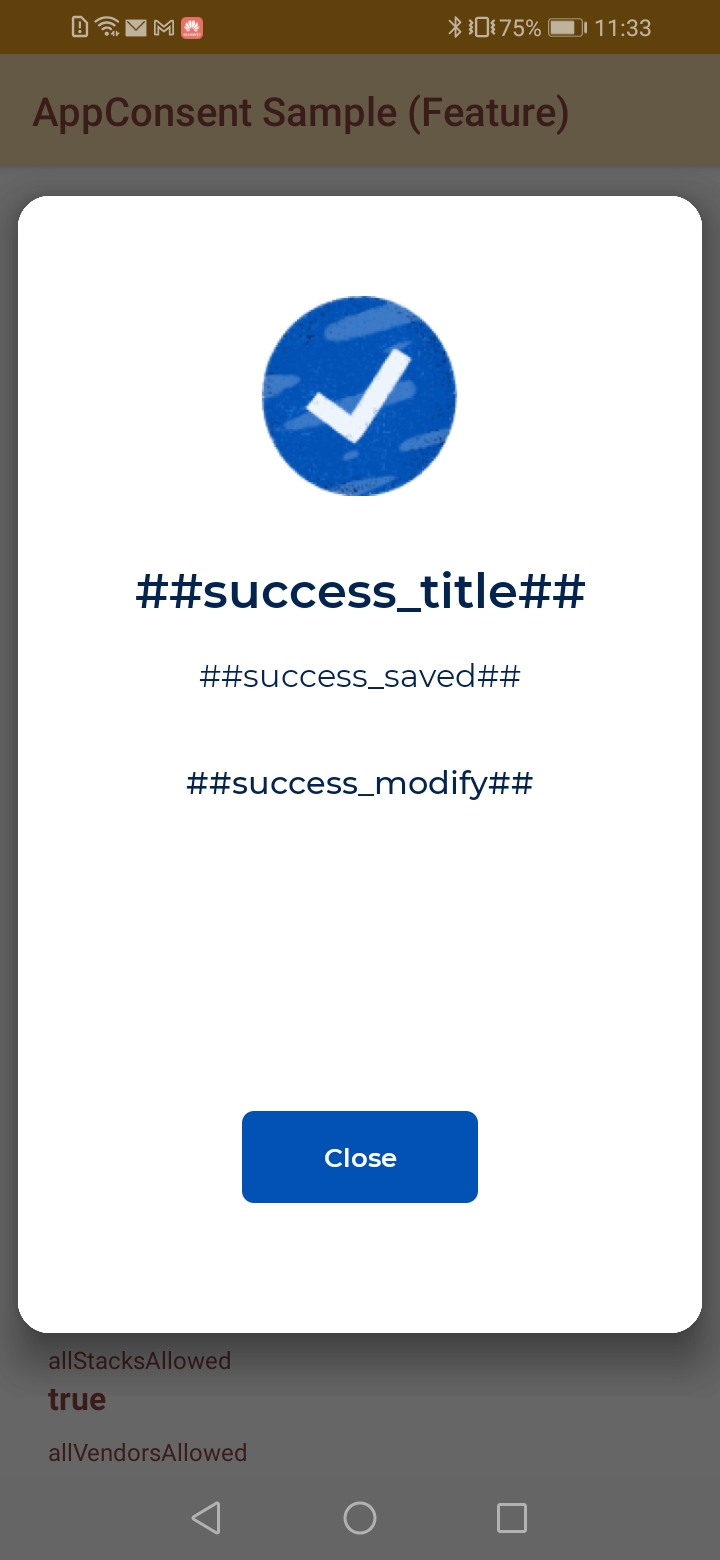
Success page
NOTE
There is no need to change the text in the fields below, these entries will not be taken into account:
Seemore
privacy_sections_stacks
choices
consentable_vendors_popover_title
consentable_legintvendors_popover_title
consentable_legint_accept
vendor_legints_info
mandatories_feature_section
mandatories_purpose_section
banner_moreDetails_open
banner_moreDetails_close
stack_details_switch_title
Banner layout
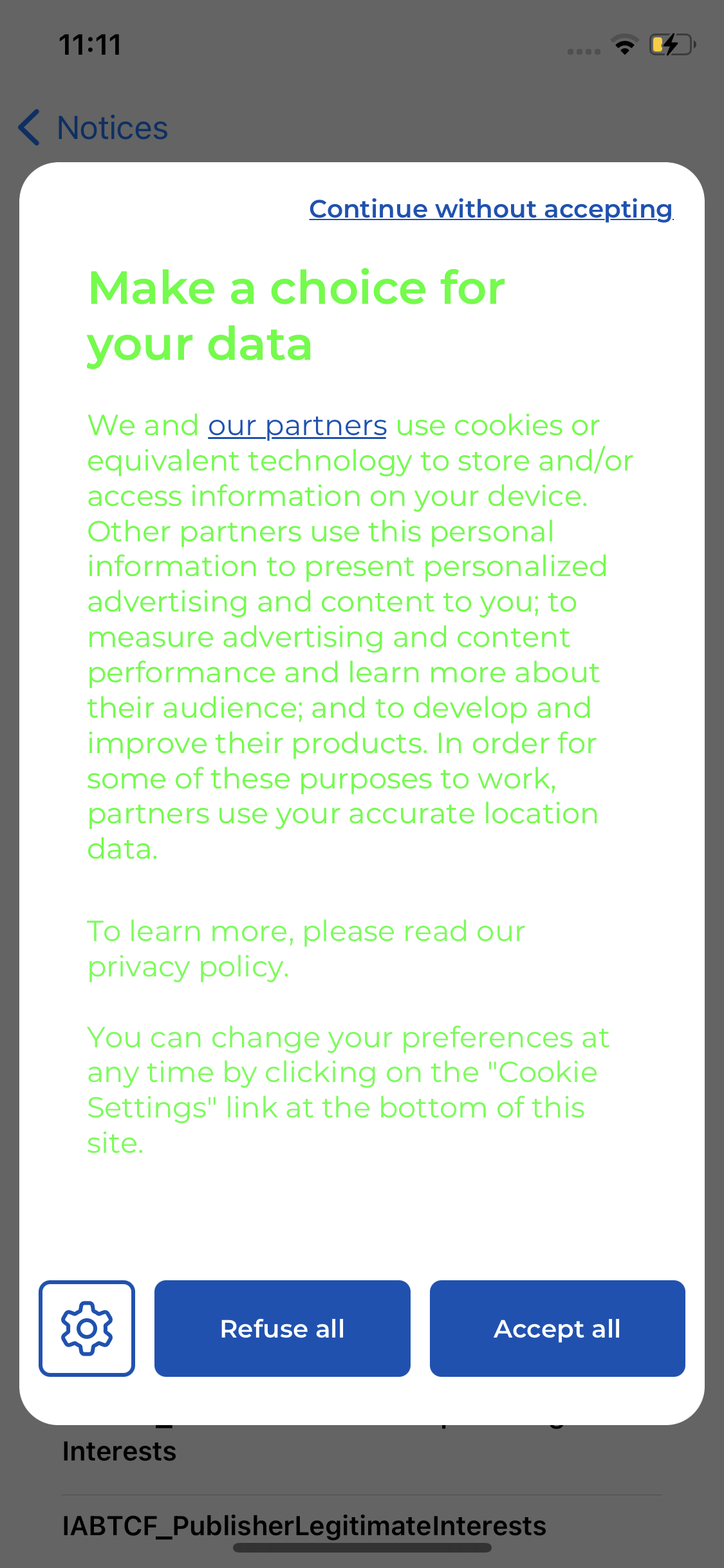
Consent buttons
Choose the buttons and their order on the introduction page
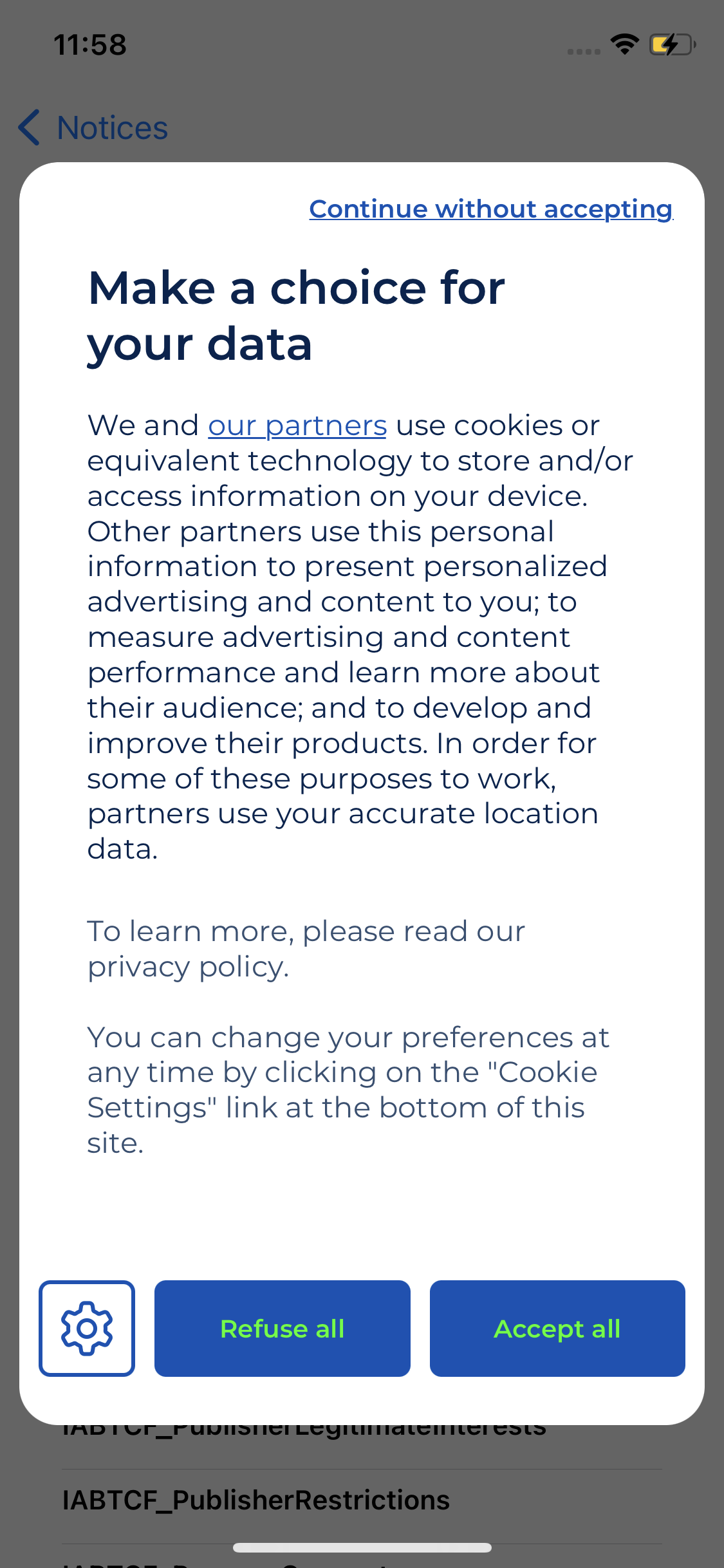
[3 buttons] Choose to highlight only the Accept button. If activated, the Accept button will be more prominent than the other two buttons.
Choose to add or not the "Continue without accepting" button so that the user can leave the notice without making a choice. By default, it is a link "continue without accepting" placed at the top right of the window.
NOTE ABOUT ITALIAN NOTICES
As recommended by the Italian regulator, the Garante, our Continue without accepting link is automatically replaced by a cross for all InApp notices, for whom the user device has an Italian country code. This cross has the same effect as our link Continue without accepting: close the notice with no consent.
iOS ATT
Activate for iOS. On iOS, user consent for ad tracking is managed by the AppTrackingTransparency (ATT) system. To activate this parameter, the success screen must be deactivated.
Illustration
[ Standard, Essential & Premium Plans]
Choose to display illustrations or not on your banner. (only for Clear banner)
Success Screen
Activate this option if you want the following screen when the user goes beyond the introduction screen and makes mixed choices.
Display purposes list on layer 1
[ Standard, Essential & Premium Plans ]
Choose to display or hide the list of processing purposes used by you and your partners on the main page of the banner.
IMPORTANT
Please note that the IAB TCF (Transparency and Consent Framework) and the various European DPAs require the purposes of processing to be displayed. If you deactivate this option, it is your responsibility to inform your users in an appropriate manner about the purposes for which their personal data is processed.
UI customization
[ Standard, Essential & Premium Plans ]
To have a notice which fits with your app UI, you can customize some visual assets and colors.
Banner pictures
Add a logo or icon : Your image will be displayed on your banner.
Add a logo or icon to be displayed on the success page : If you have chosen to display a success screen, choose the image to be displayed on it.
Buttons and texts color
Depending on whether you choose to integrate the Classic or the Clear consent notice template on your application, please refer to the corresponding section to modify the default UI customization.
Some colors of the notice can be customized with your own colors.
Text color (layer 1)
Text color (layer 2)
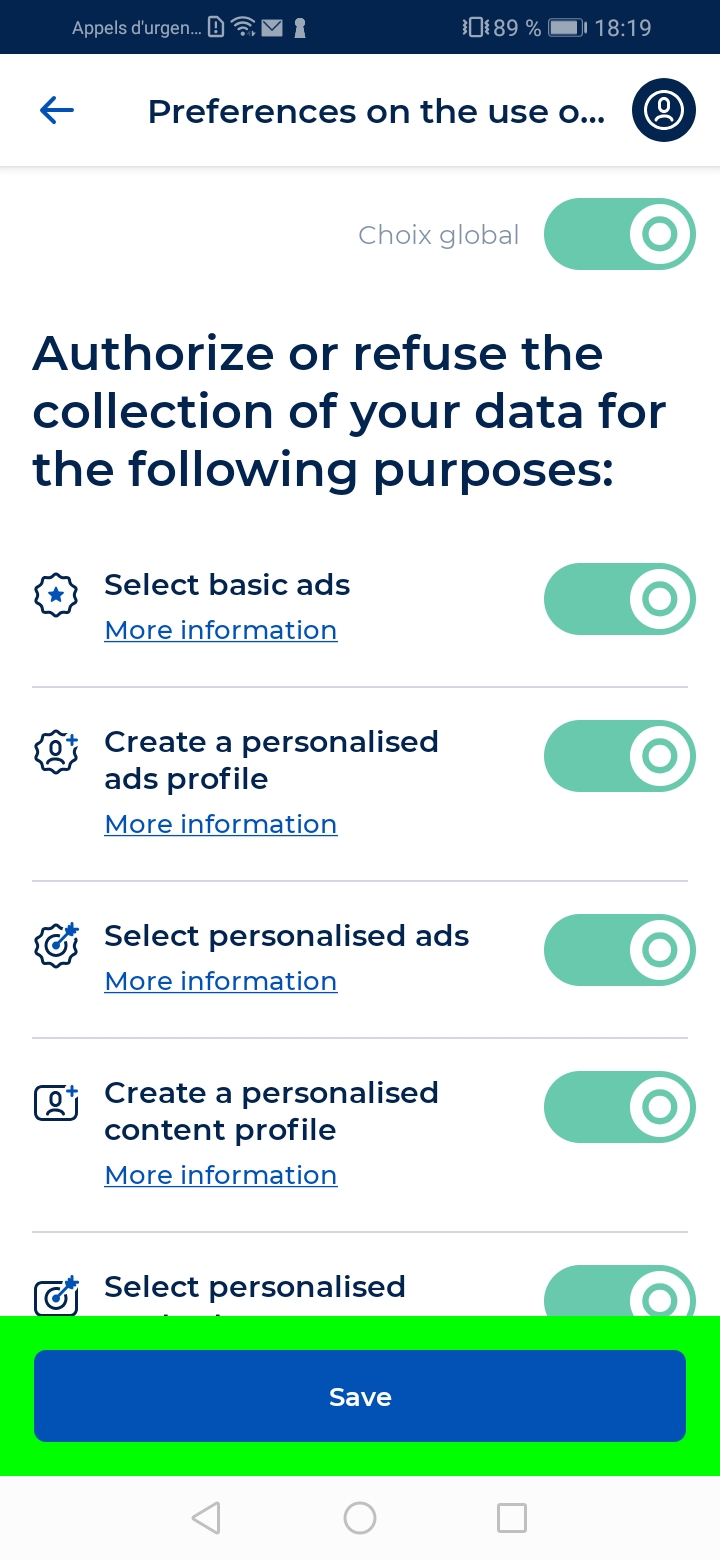
Banner background color
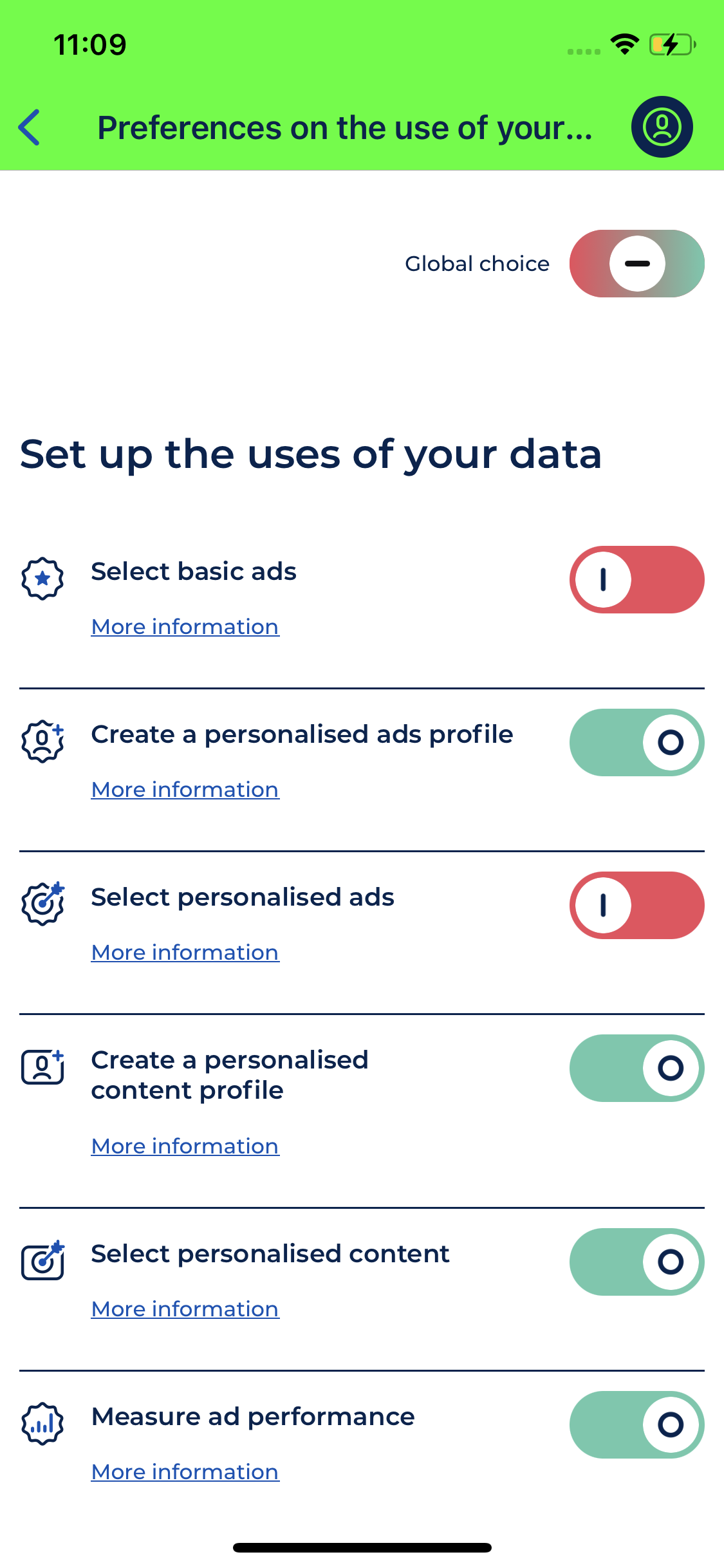
Action bar background color
Action bar text color
Status bar background color
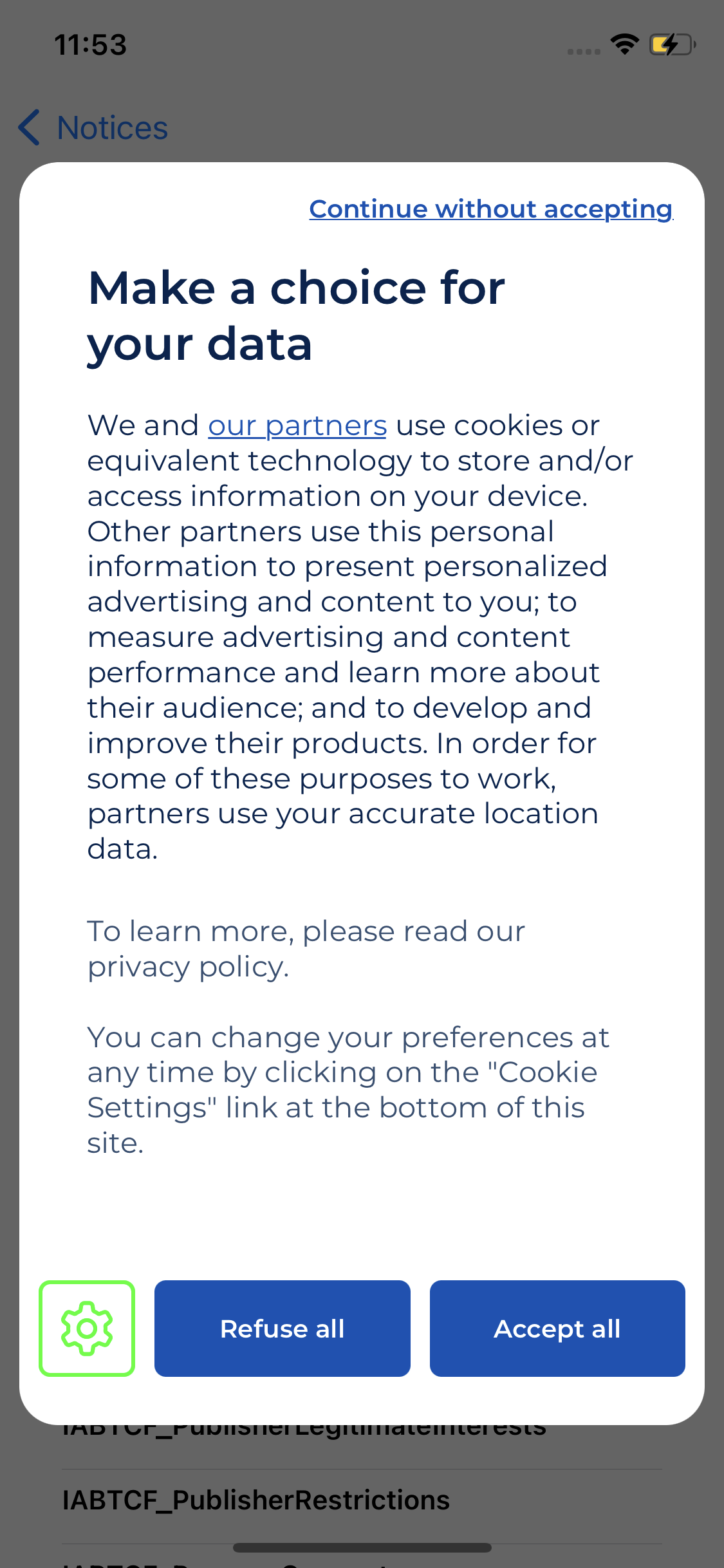
Button border color
Button background color
Button text color
Separator color
Button text color (layer 2)
Copyright color
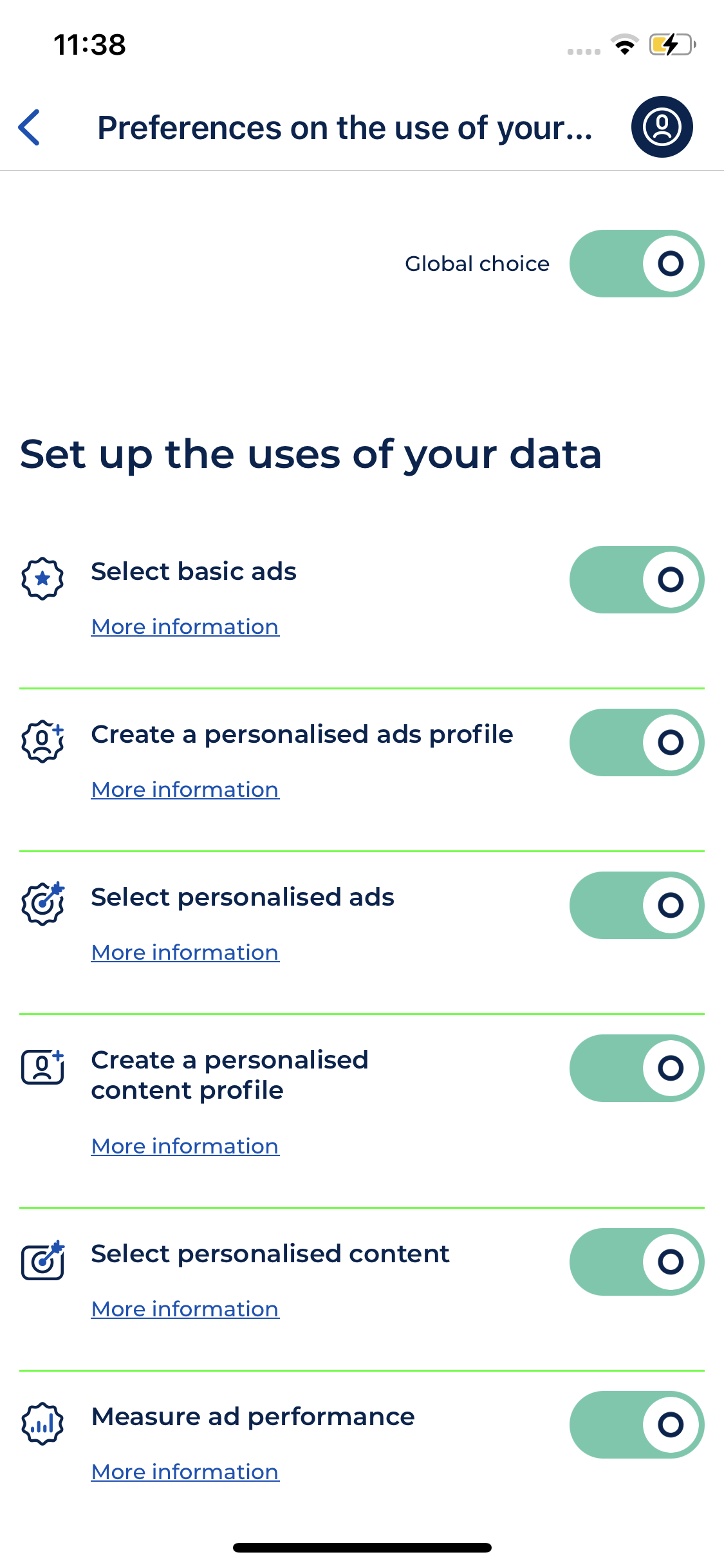
Switch unset background color
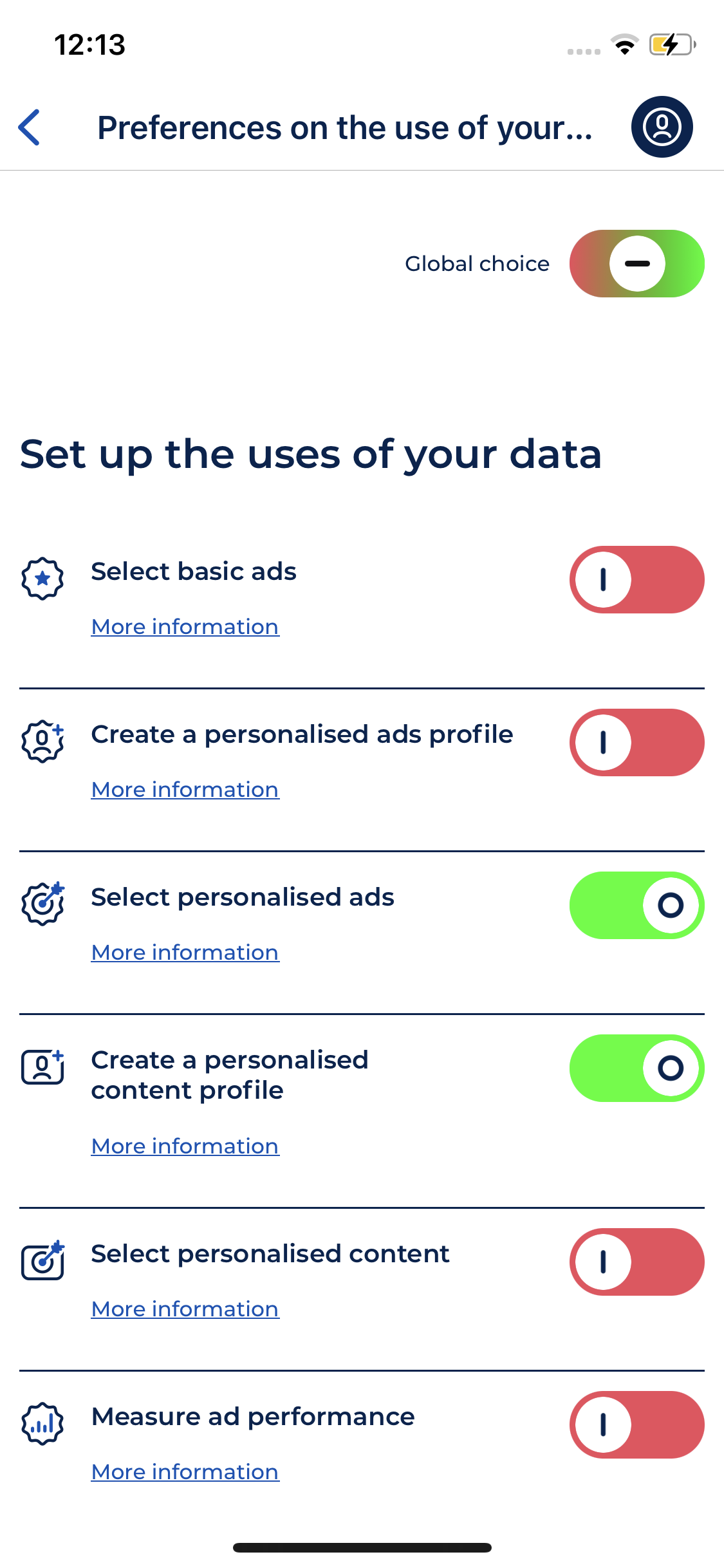
Switch on background color
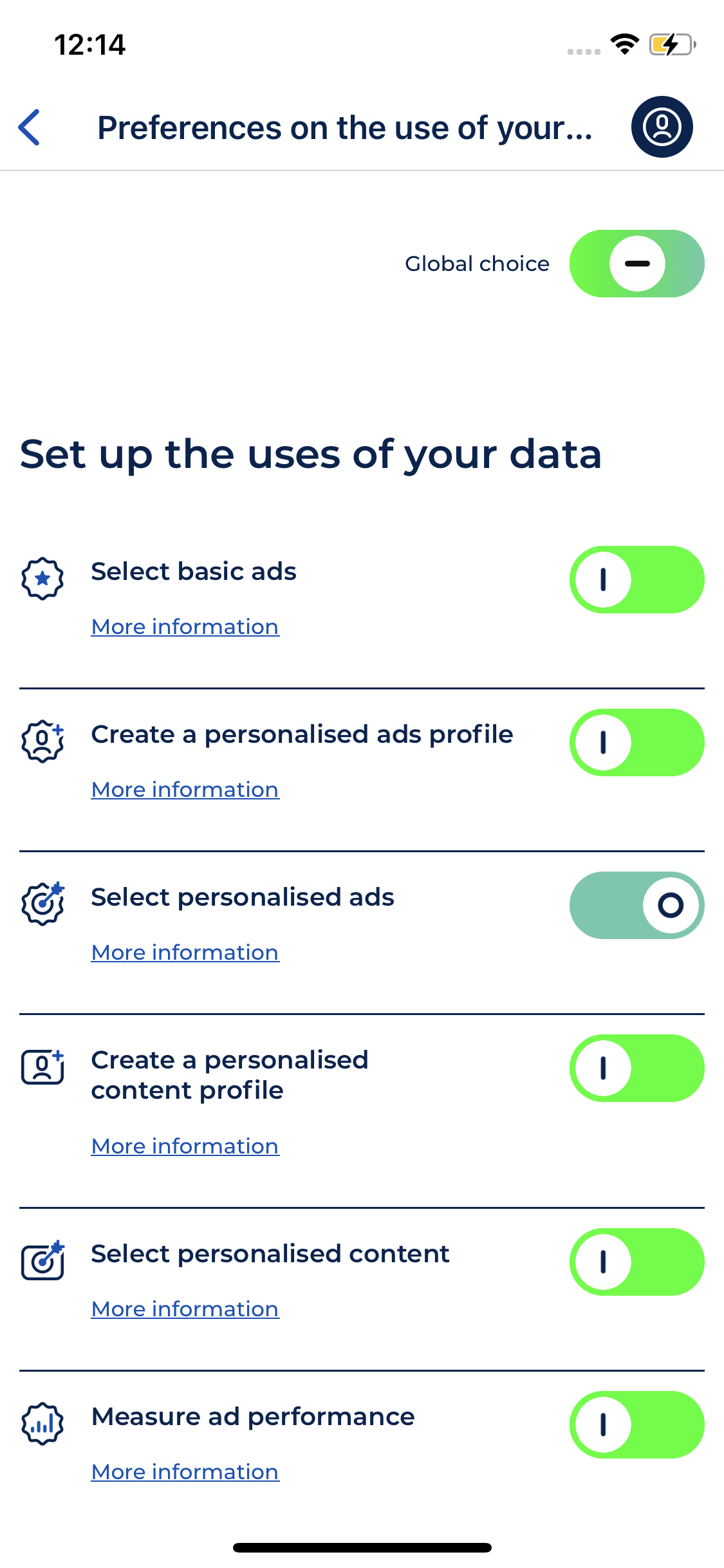
Switch off background color
Switch on button color
Switch off button color
Geonotice banner background color
NOTE
The fields below are for Box TV notices only:
Vendor background color dark
Vendor separator color
Button selected color
Advanced settings
Floating extra purpose
A floating purpose is a purpose for which only the storage of the consent is concerned. See the Floating purpose feature section.
Enable Legitimate Interest purposes when Refuse All/Continue without accepting (skip)
If the user refuses or leaves, you can decide to collect any data (switch off) or collect only data for purposes under a legitimate interest legal base (switch on)
Consent retention period
These default values, which we recommend, allow you to be in compliance while maximizing your consent rates. Those durations represent the time lapse before the consent notice will be displayed again and consent will be sought once more.
Accept all: 12 months
Refuse all: 6 months
Mixed choice: 12 months
(if activated) Continue without accepting: 3 days
You can modify the durations at any time.
If you have created your consent notice before October 28th, 2021, the default settings for mobile consent notices are on 12 months for all choices. Feel free now to adjust them.
Save the notice
Click on Save. The notice in Production is updated and ready to be implemented in your application.