> For the complete documentation index, see [llms.txt](https://docs.sfbx.io/llms.txt). Markdown versions of documentation pages are available by appending `.md` to page URLs; this page is available as [Markdown](https://docs.sfbx.io/configuration/step-2-create-a-notice/2.3-actions-on-a-notice.md).
# 2.3 Actions on a notice
***
## **Edit a notice**
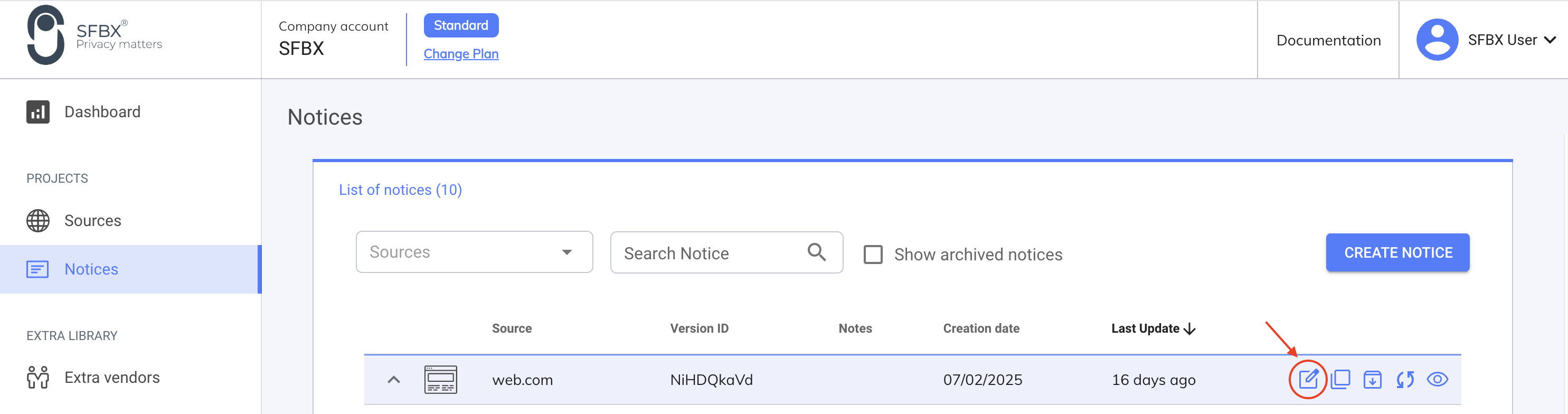
Go to **Notices**, and in the menu on the right, click on the icon corresponding to the modification.
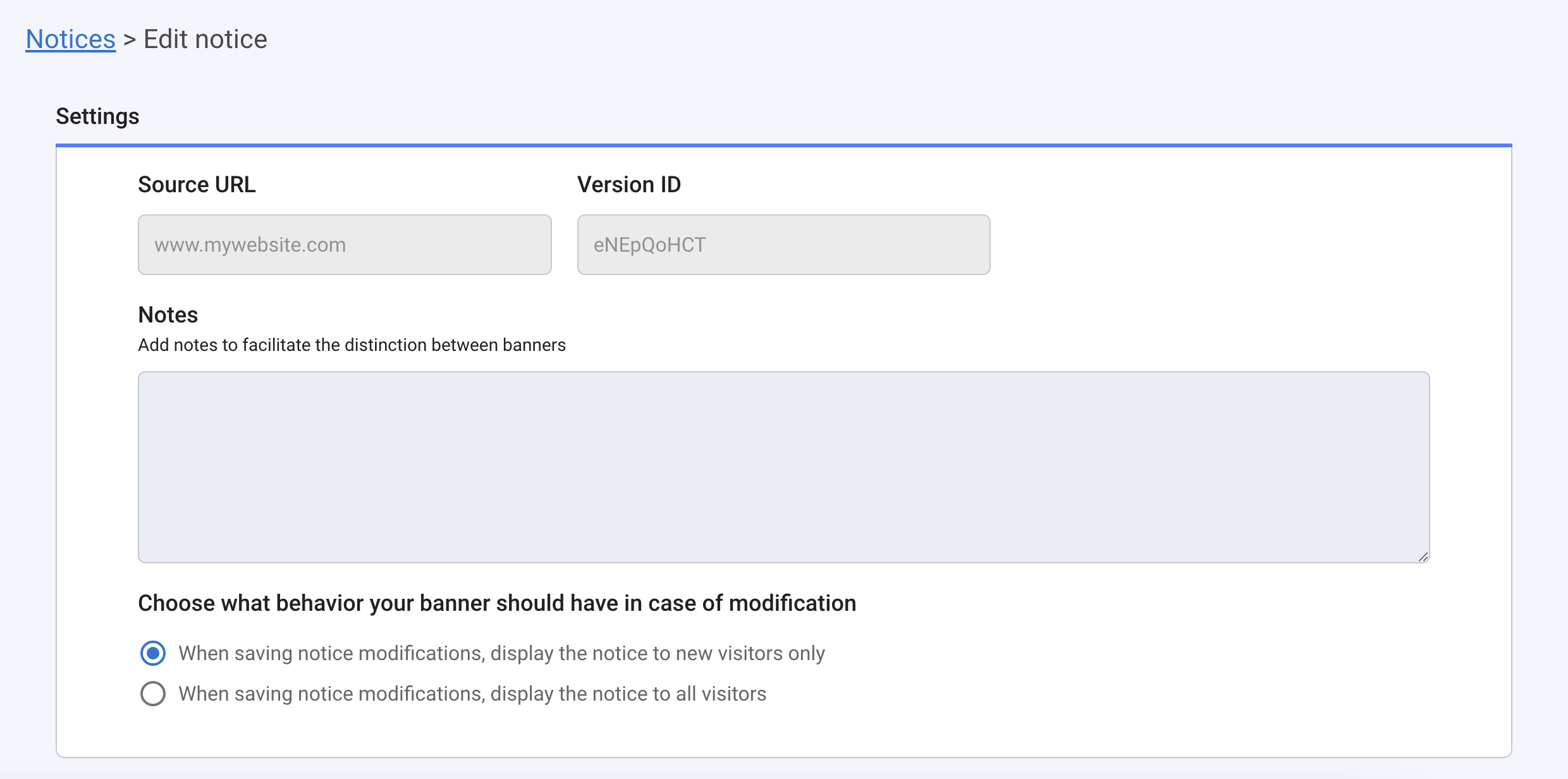
You will end just here :
* **Choose what behavior your banner should have in case of modification**: Note that by default, for any modifications of a consent notice or of its source, the modified notice will only be displayed to new visitors and the notice won't be displayed to previous visitors. If you prefer this last option, you can change the Notice display mode.
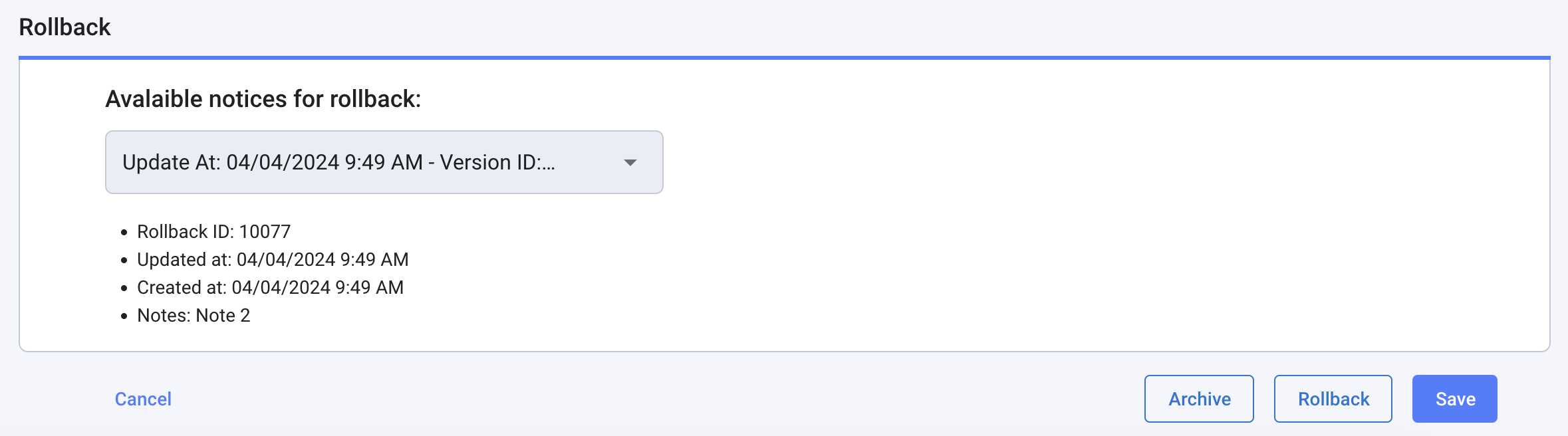
* *\[ Mobile notice only ]* In the **Rollback** section, you can choose to go back to a previous notice version.
* **Archive**: If you don't need your notice anymore you can archive it. By doing so it will not be on your Notice list anymore.
* **Save**: Saving all your modifications.
## **Duplicate a notice**
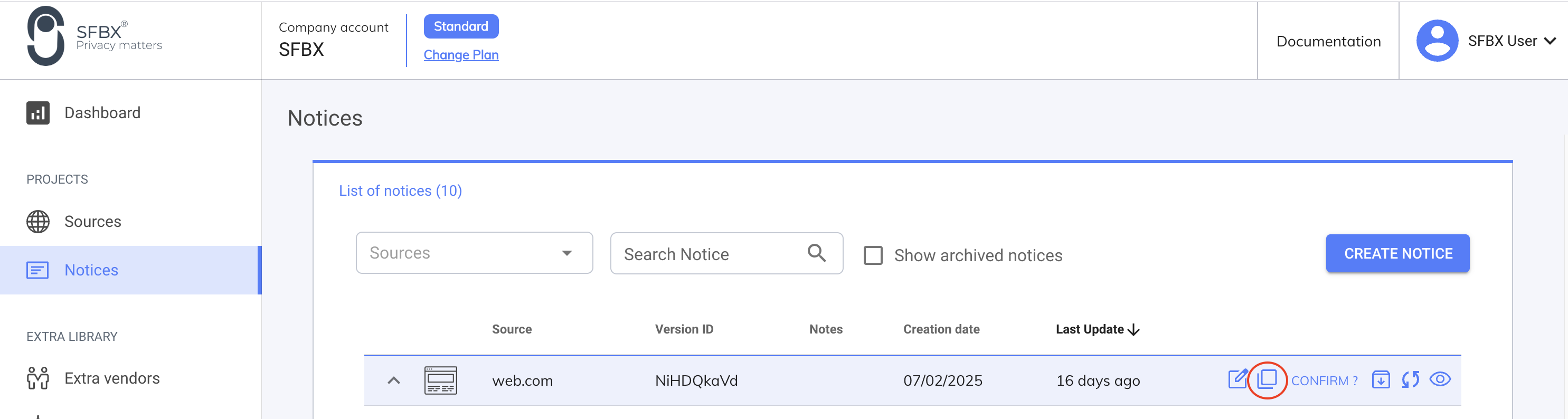
You can duplicate a notice from **Notices**, in the list of your notices, by clicking on the duplicate icon.
## **Archive a notice**
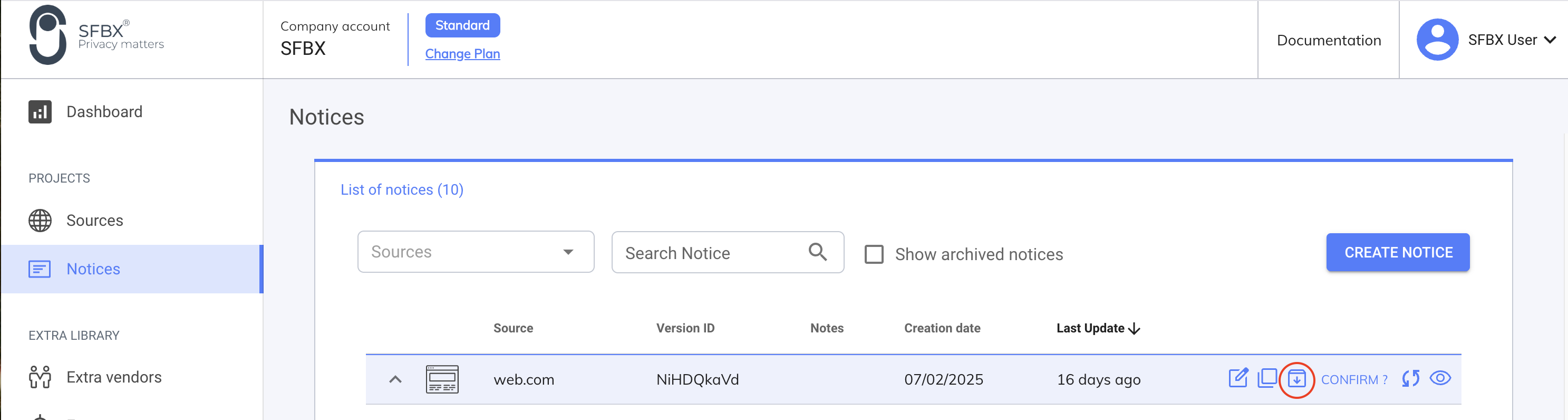
You can also archive a notice from **Notices**, in the list of your notices, by clicking on the archive icon.
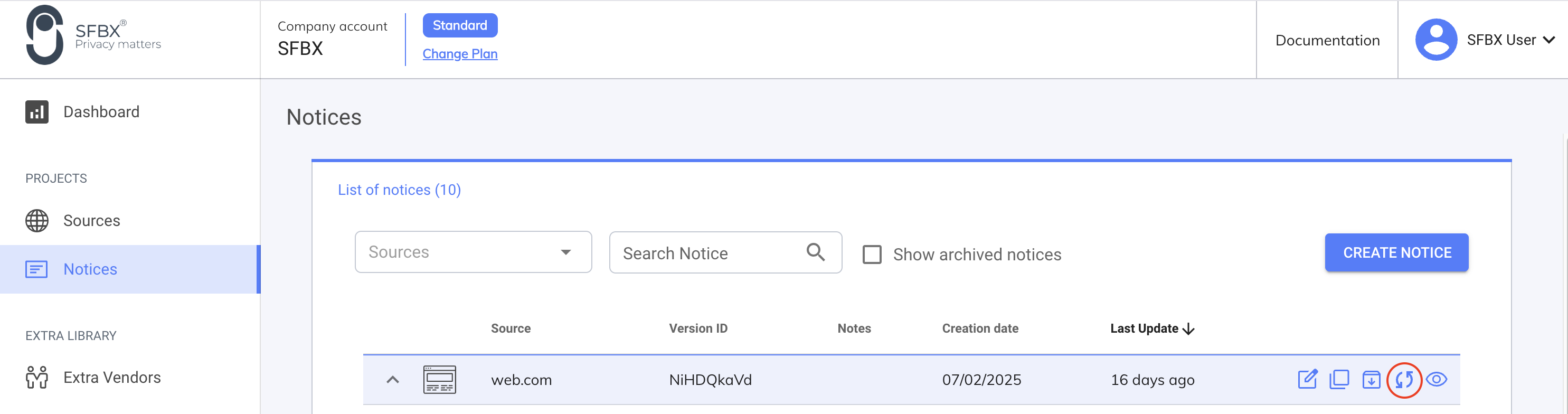
## Rebuild a notice
You can update the notice without having to return to the notice modification form after modifying a source.
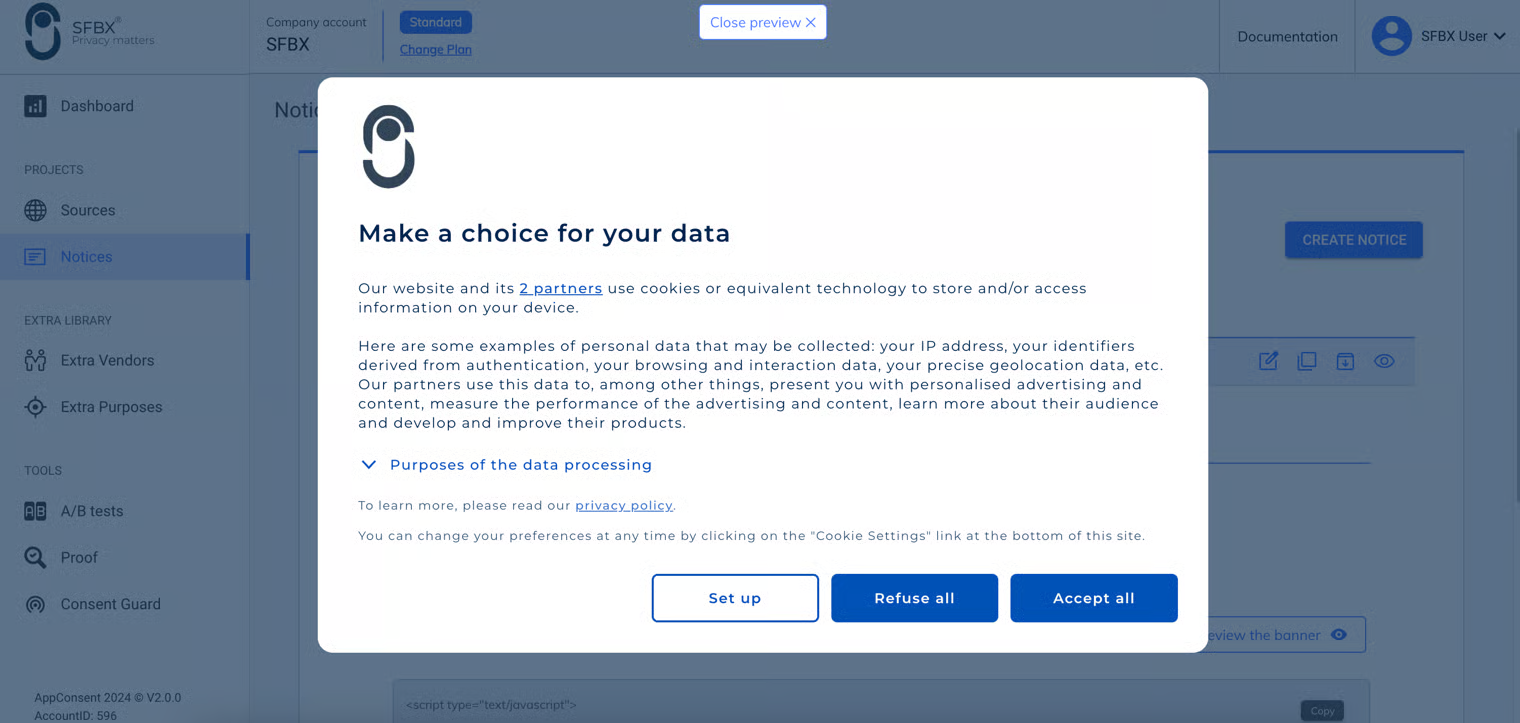
## Preview a notice
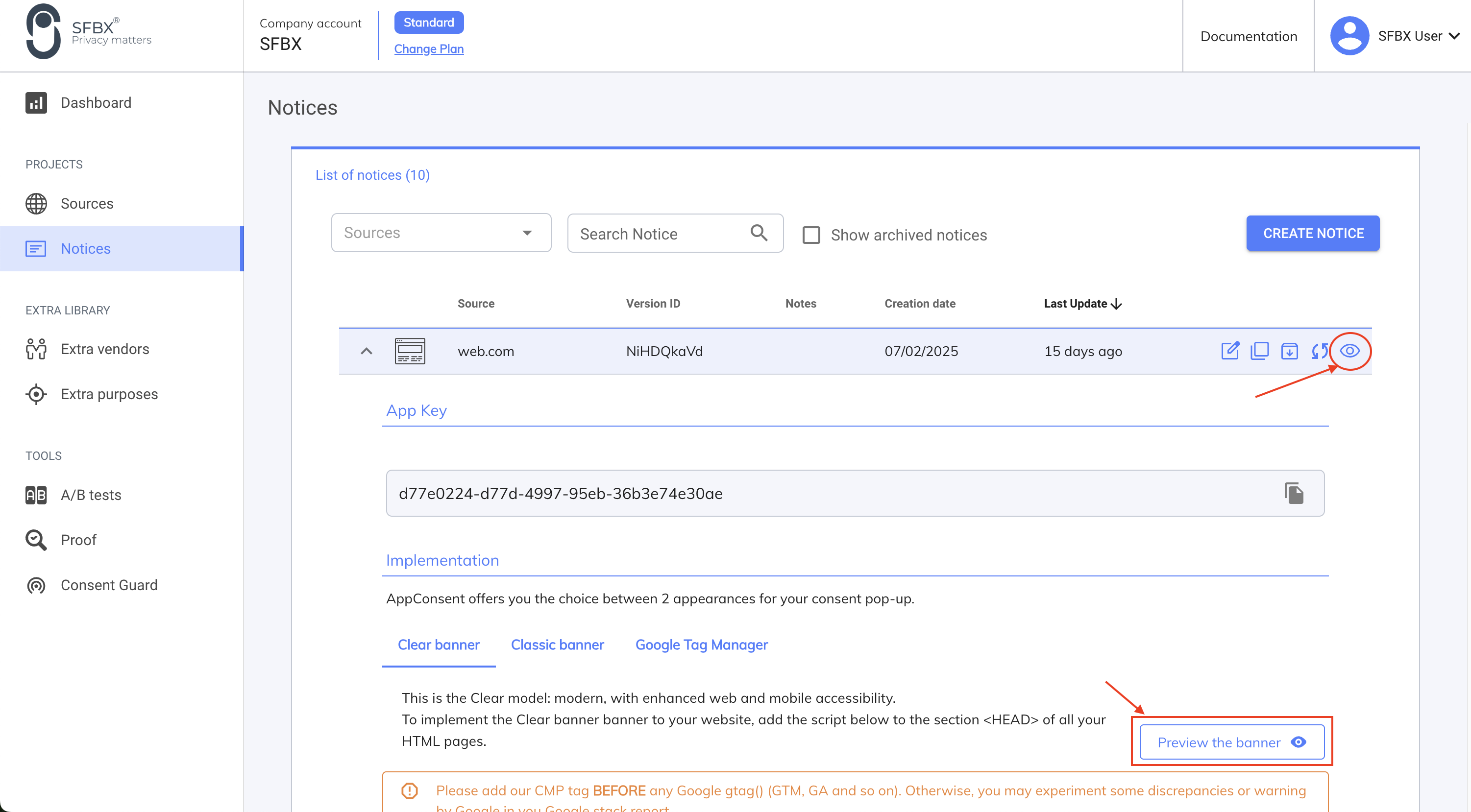
In the notices list, click on the **Preview** icon or on **Preview the banner** to preview the notice you want.