> For the complete documentation index, see [llms.txt](https://docs.sfbx.io/llms.txt). Markdown versions of documentation pages are available by appending `.md` to page URLs; this page is available as [Markdown](https://docs.sfbx.io/configuration/step-3-notice-implementation-web-app-tv/google-gtm/manage-google-analytics.md).
# Manage Google Analytics
Google Analytics management is integrated into the CMP using the GCM (Google Consent Mode) protocol. GCM blocks Google Analytics from depositing cookies or scripts before the user consent. The CMP may continue to block Google Analytics after the user's consent, depending on the user's choices.
On this page you'll find information on how to manage Google Analytics with AppConsent, depending on your implementation.
## Implementing and configuring Google Analytics with GTM
### Measurement ID retrieval
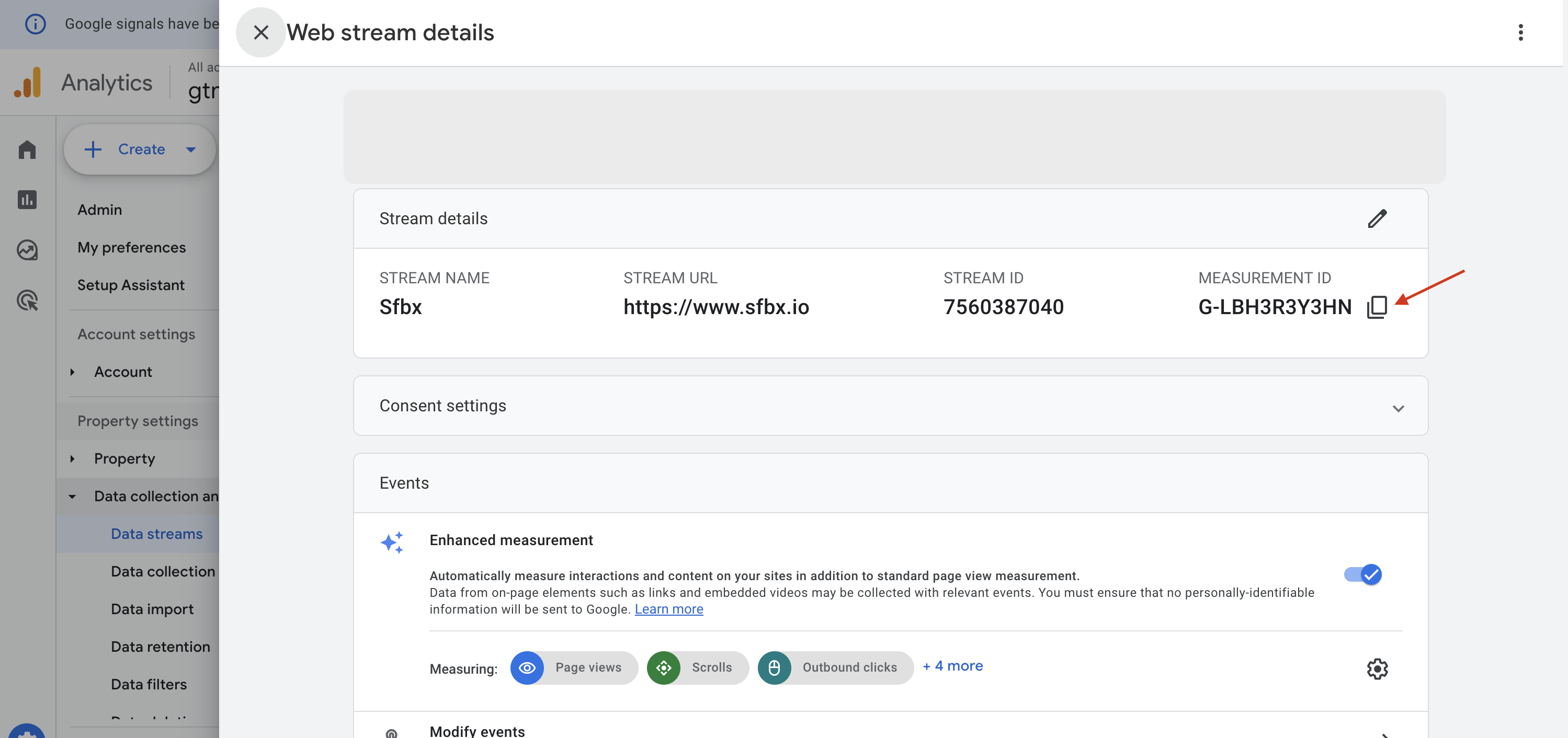
Before implementing Google Analytics, you need to retrieve your measurement ID. To do this, you need :
1. Go to on your Google Analytics dashboard
2. In the left-hand side panel, click on **Admin**
3. In the page, find the section **Data collection and modification**
4. Then click on **Data streams** menu
5. Click on data stream you wish to integrate to open the stream details
6. And copy measurement ID using the button
### Implementing Google Analytics with GTM
1. Return on Google Tag Manager
2. On the left-hand side panel, click on the **Tags** menu
3. Then click on **New** button
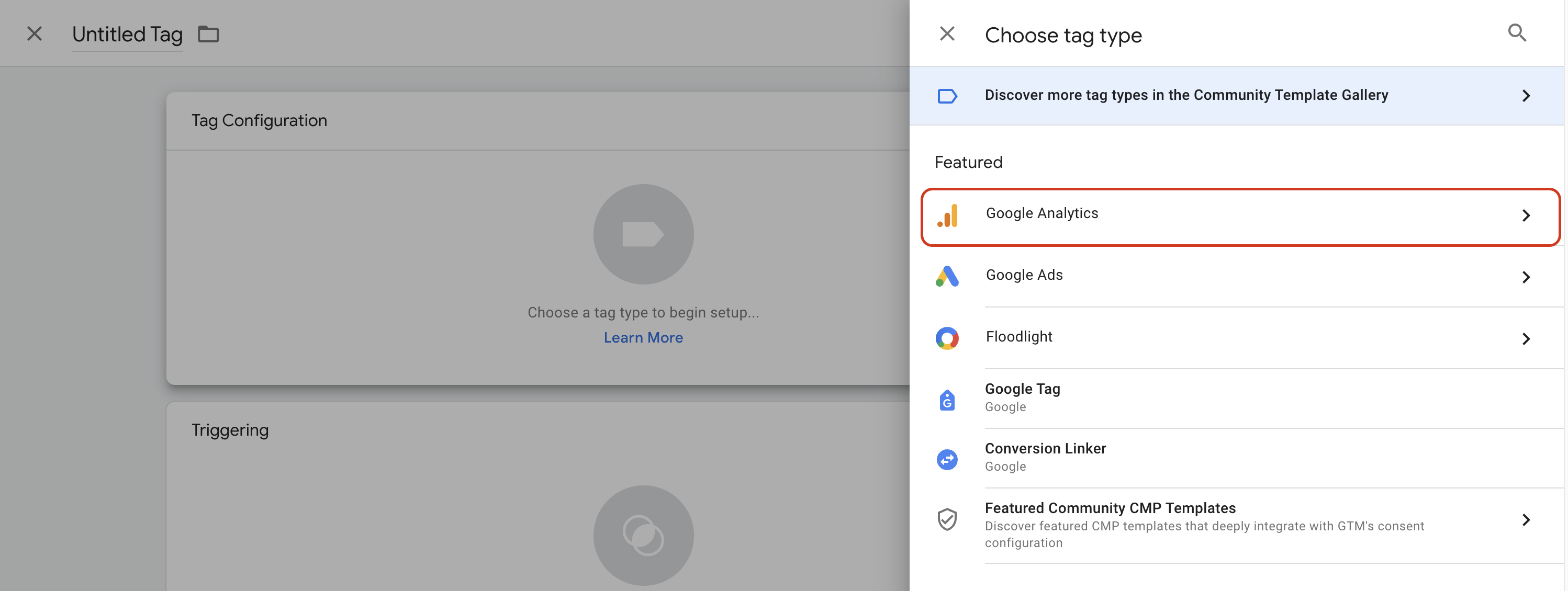
4. Click on **Tag configuration** section
5. Then in the left-hand side panel, select **Google Analytics**
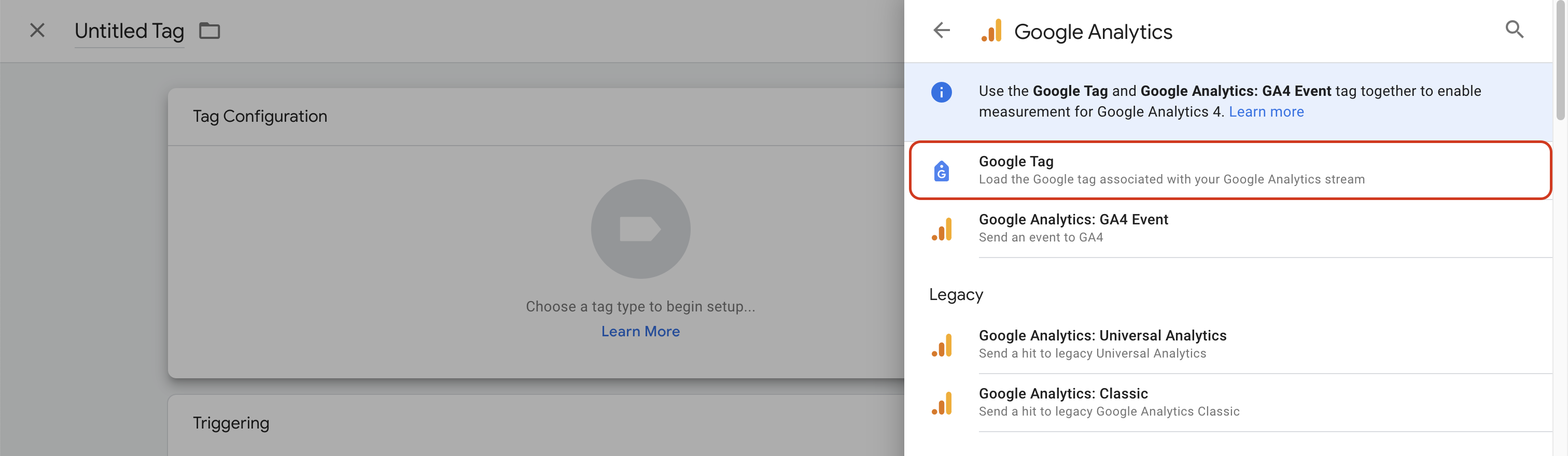
6. The click on **Google tag** template
7. Paste the previously copied ID (see above) into **Tag ID** field
8. In the accordion **Consent Settings** located in **Advanced Settings**, you can see that your tag is already ready to use Google Consent Mode signals
9. In triggering section, add the **All Pages** trigger
10. Then, name and save the tag
## AppConsent configuration for Google Analytics (Google Consent Mode Advanced Mode - GCMv2)
For Google Analytics to be controlled by the CMP, GCM (Google Consent Mode) must be activated in the notice configuration and in the notice implementation (code or GTM).
For more information on implementing Google Consent Mode, see the page: [Setting up Google Consent Mode v2](/configuration/step-3-notice-implementation-web-app-tv/web-cmp/setting-up-google-consent-mode-v2-for-google-analytics-and-google-ads.md)