> For the complete documentation index, see [llms.txt](https://docs.sfbx.io/llms.txt). Markdown versions of documentation pages are available by appending `.md` to page URLs; this page is available as [Markdown](https://docs.sfbx.io/go-further/advanced-settings-notice/team-collaboration-on-1-notice-copy-from-linked-account.md).
# Team collaboration on 1 notice (Copy from linked account)
{% hint style="info" %}
**INFO**
If you need it, [contact us](mailto:support@sfbx.io) so we can link several of your accounts together.
{% endhint %}
## How Copy from linked account work
By choosing to link two accounts, you will have one parent account and one child account.
In the example below, our Parent account is **Demo Premium**
The **Chandago Test Premium** is the child account
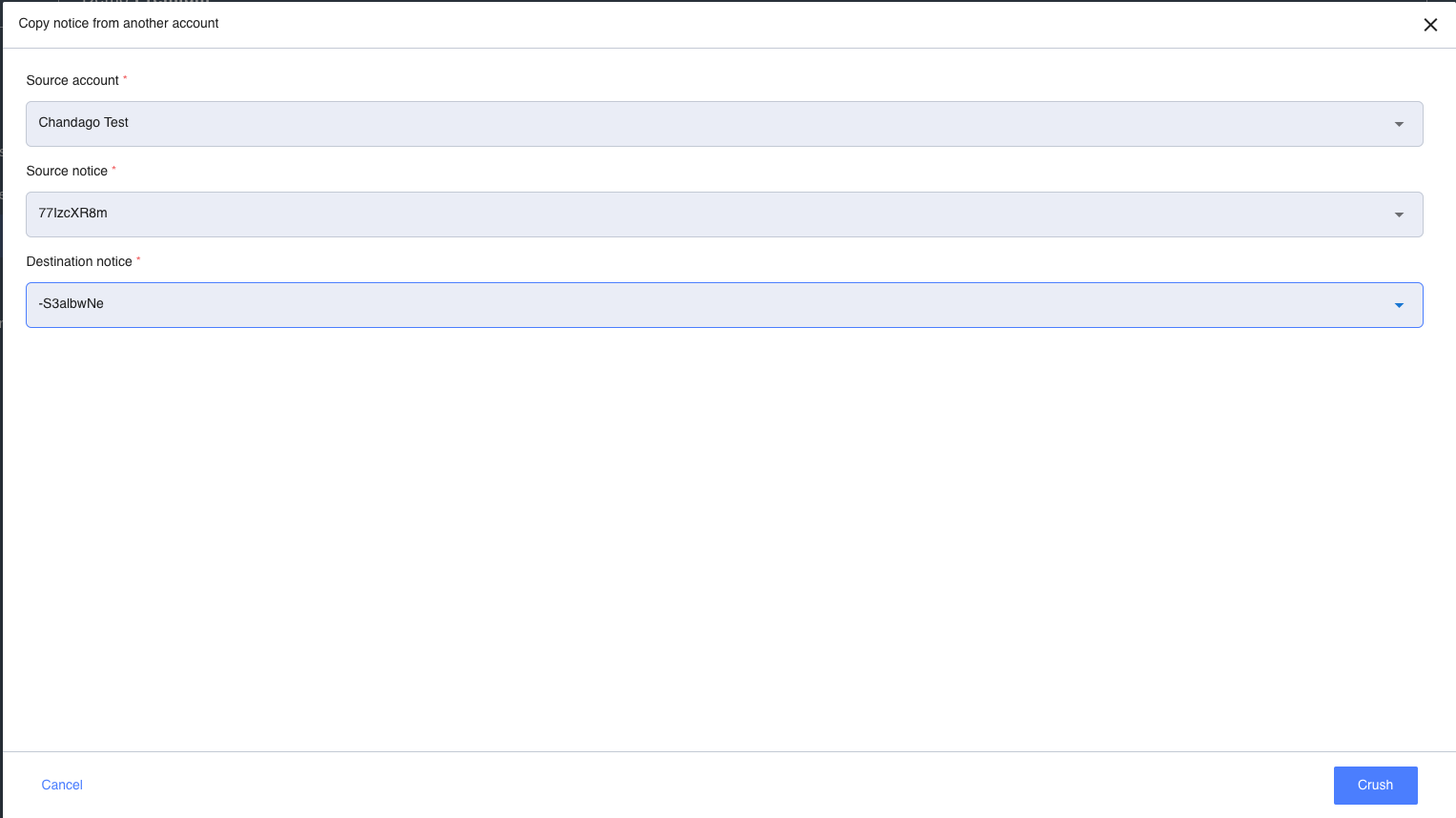
Now if you want to export a Notice from the **child account**, you have to go to "Notices" of the **parent account**. and then click to **COPY FROM LINKED ACCOUNT**
* Source account : child account
* Source notice : select the **Version ID** of the notice who will replace the destination notice
* Destination notice : select the **Version ID** that is going to be **crush**.
{% hint style="danger" %}
**CAUTION**
By doing this you will delete the `Destination notice` of your back-office
{% endhint %}