> For the complete documentation index, see [llms.txt](https://docs.sfbx.io/llms.txt). Markdown versions of documentation pages are available by appending `.md` to page URLs; this page is available as [Markdown](https://docs.sfbx.io/go-further/compliance/get-proof-of-your-consents-proof.md).
# Get proof of your consents (Proof)
***
## Get proof of your consents (Proof)
From your AppConsent account access the entire history of consents and be able to provide proof of collection at any time.
### Get your consents history
Click on the **Proof** tab.
* **Source:** Select the source you want
* **Notice:** Then choose the notice you want by selecting the right Notice ID.
* **UUID:** For Universally Unique Identifier, these IDs are the ones of Appconsent users . These IDs are generated differently depending on the user's platform.
{% hint style="info" %}
**NOTE**
We talked here about UUID-V4. These are randomly generated strings with a very low probability of collision.
On the Web, it is the collector that generates a UUID, it is stored in local storage or in a cookie and is quite volatile.
On Android, the UUID is created by the client from the AAID (Android Advertising ID) of the user. This AAID is a UUID specific to the user's device and is quite robust.
On IOS it's like on Android but the phone ID is called MAID (Mobile Advertising ID).
{% endhint %}
## How to retrieve UUID?
### For the Web
#### Solution 1
Go in your browser and open the console. ( or Developers tools , it depends of your browser brand )
Past this piece of code `JSON.parse(localStorage.getItem('appconsent')).consents.uuid` and hit Enter. It will give you directly your UUID. ( works on any web browser ).

#### Solution 2
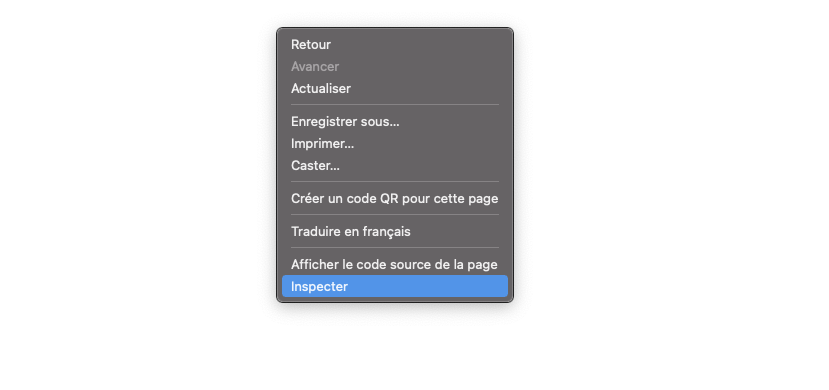
To retrieve your UUID you can go to the website where your Notice run and then open your Browser Console or the Firefox developer tools. You should have this:
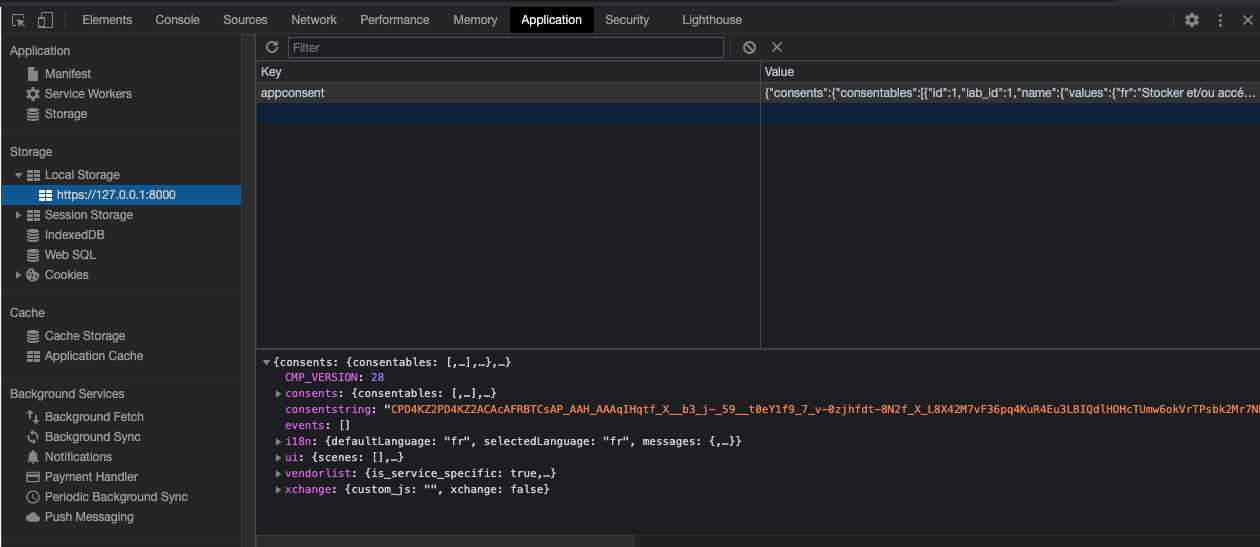
Then go to **Application** and click on **local storage**, like this:
In the exemples below, 127.0.0.1:8000 must match your website domain: like mywebsite.com and so on.
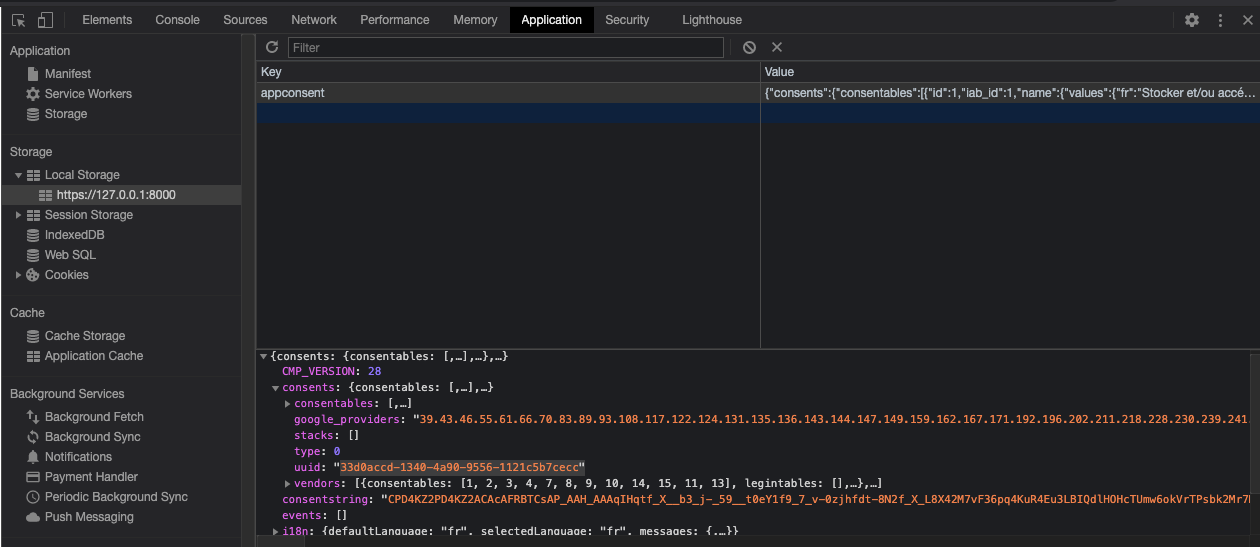
Open **consents** and you should see your uuid like the example below:
Now that you have your UUID you can insert it in the UUID field.
{% hint style="info" %}
**NOTE**
For Android and iOS we talk about **IDFA** or **GAID. It's not the same process.**
{% endhint %}
## For Android
Technical solution via our SDK
Our SDK provides a method for accessing this information.
**getUserId** :
If you want to read the information in the logs, use this snippet:
{% tabs %}
{% tab title="Kotlin" %}
```kotlin
private fun logAndroidAdvertisingID(){
if(BuildConfig.DEBUG){
Log.d("AAID", "Android Advertising ID: ${appConsent.getUserId()}")
Log.d("AAID", "isLimitedTrackingEnabled: ${appConsent.isLimitedTrackingEnabled()}")
}
}
```
{% endtab %}
{% tab title="Java" %}
```java
private void logAndroidAdvertisingID(){
if(BuildConfig.DEBUG){
Log.d("AAID", "Android Advertising ID: " + appConsent.getUserId());
Log.d("AAID", "isLimitedTrackingEnabled: " + appConsent.isLimitedTrackingEnabled());
}
}
```
{% endtab %}
{% endtabs %}
Why use this method? Because the AAID on your device may not be the same. If, for example, you've restricted AAID tracking in the settings or simply deactivated the AAID, the SFBX SDK generates its own UUID V4.
You'll get this in the logs:
#### No-code solution (recommended version)
Here the technique is rather simple: access your application's default SharedPreferences file directly via Android Studio's Device Explorer.
Open the file in the directory:
> data/data/**\**/shared\_prefs/**\**\_preferences.xml
And find the following keys:
*
* ```xml
false
```
## How to retrieve AppConsent Key
{% hint style="info" %}
**NOTE**
If you know your notice versionID, you can bypass this step and jump to **Result**
{% endhint %}
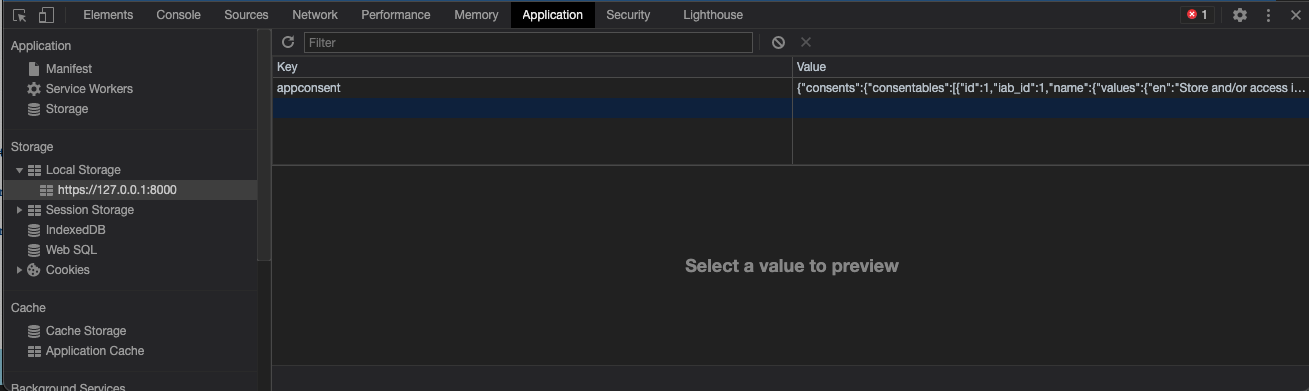
You need to open your browser, open the development tools , go to **Application**, then **Local Storage** then find the name of the website and locate an AppConsent key.
## Result
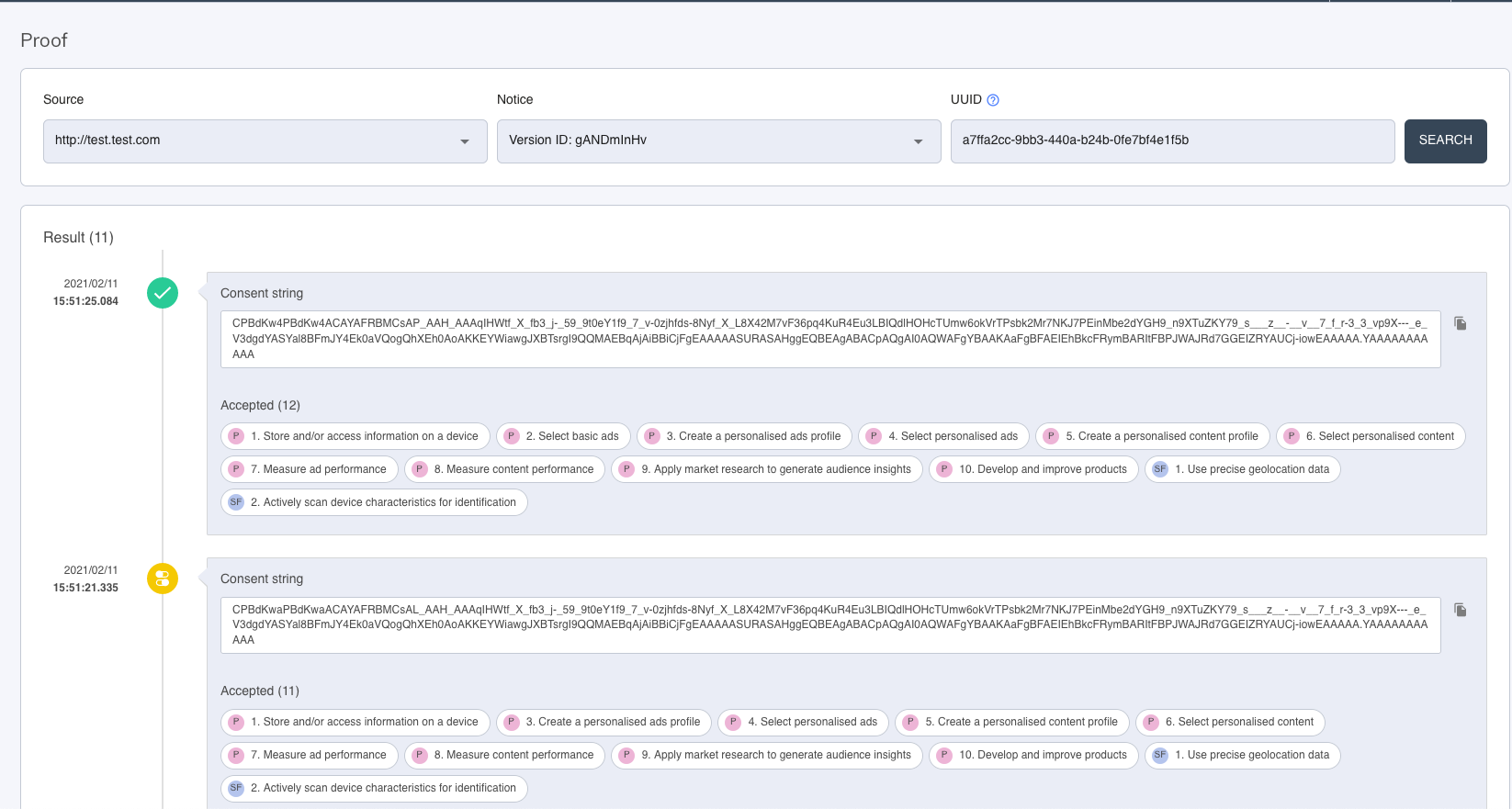
Now that all the informations are stored you can click on search and here it goes your history:
At the left you have the date and hours of the consent and the icon indicate if it was accept all / refuse all or the user's settings.
Also, you can find the Consent string that you can copy and paste and all the **purposes, special feature and extra-purposes** accepted.